How to Make a Claymation Explainer-Style Ad With AI: In One Claude Chat Under 15 Minutes
Ori Silver
·
Co-founder, Maxfusion AI
·
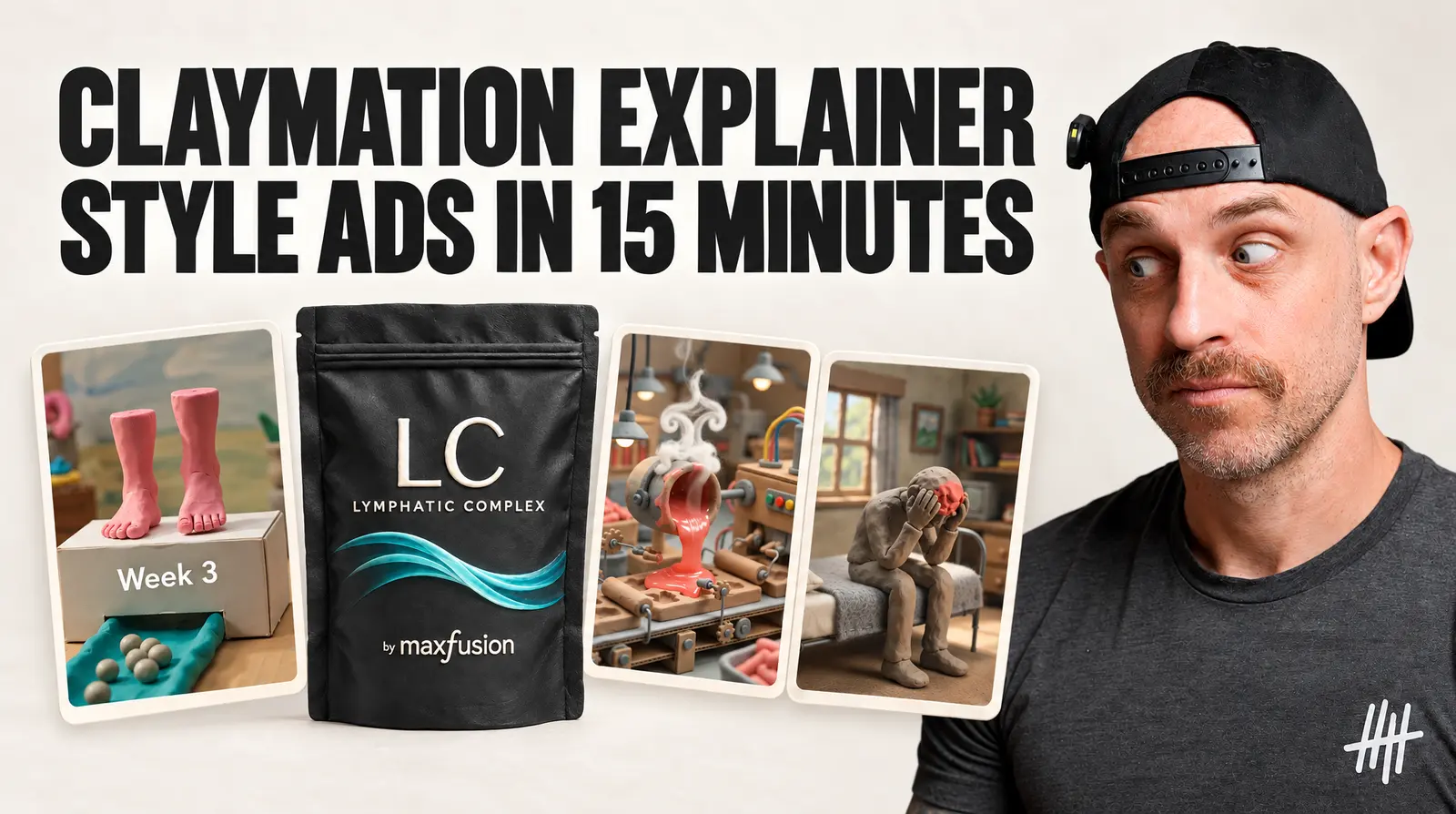
The claymation ad below took one product image, one Claude chat, and a few minutes.
The finished ad first
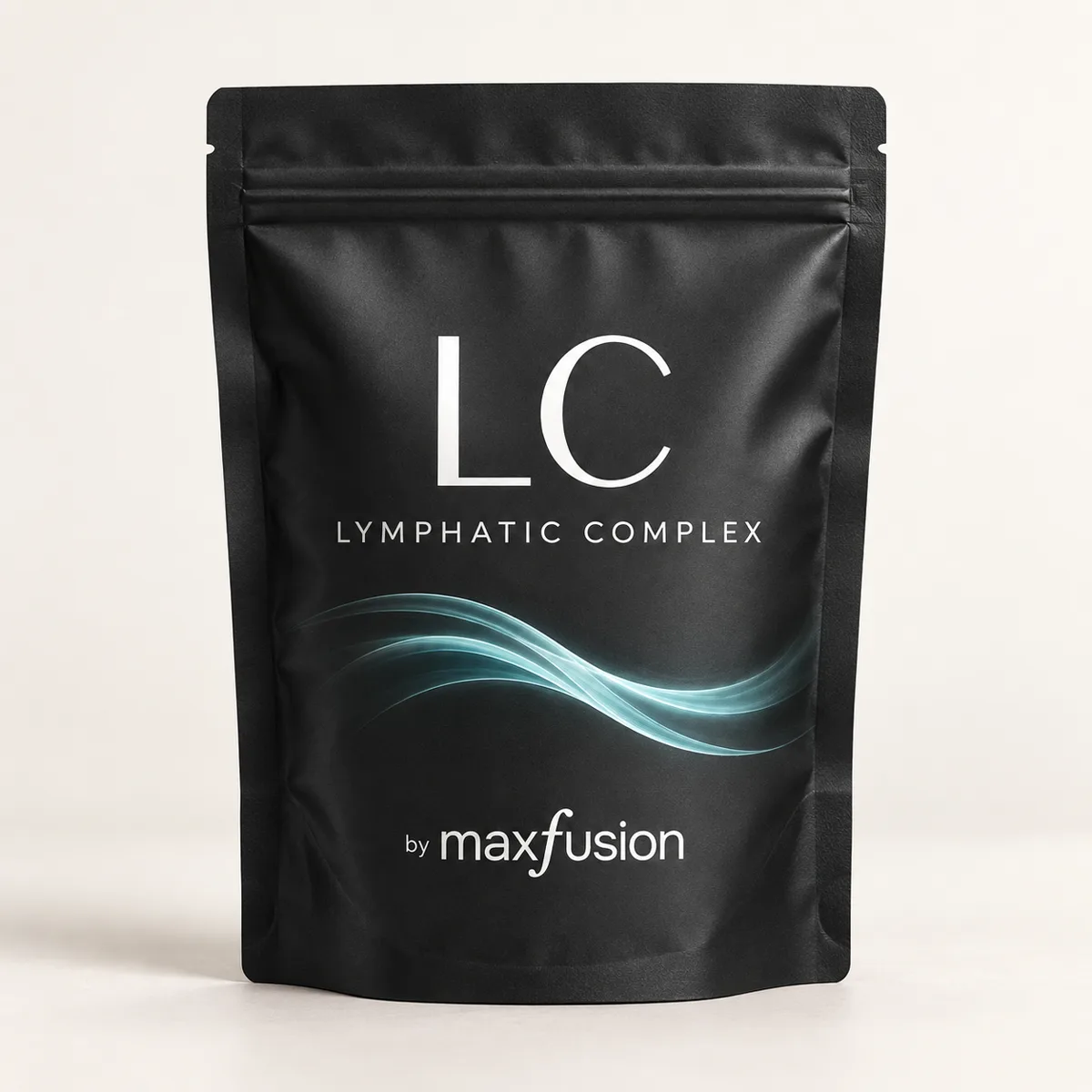

The product is LC by Maxfusion, a lymphatic support complex. The sub-avatar is a woman in her 40s dealing with heavy legs, ankle swelling, and a lymphatic system that stopped draining the way it used to. The ad tells her story from the inside: clay anatomy, a camera that pushes from her legs down into the clogged lymph vessels, and the moment the flow opens up again.
Claymation works so well because of two things. First, it stops the scroll in a sea of AI UGC and Pixar animation. Second, it opens audience segments that are highly responsive to this format and respond less to other formats, essentially opening your product to a larger audience.
Claymation lets you access broader audience
This guide shows you the full step-by-step on how to make a claymation ad using the Maxfusion AI skill available in the MCP. The same skill has already been used in hundreds of live ads currently running at positive ROAS.
Where your minutes actually go
Once you have every prompt in front of you and give Claude the go, the whole thing runs on its own. The generations fire in parallel, and the finished clips come back to the same chat. Every creative choice along the way stayed in your hands, and that is deliberate: the skill is built to amplify the human in the loop, not to replace the person making the ad.
The skill activates inside the Maxfusion MCP
The whole pipeline for creating the claymation ad is packaged as a skill inside the Maxfusion AI MCP. Connect Claude or Codex, and within a few seconds you can activate the skill and start working through the steps of your first claymation explainer-style ad.
If you want to see more examples of the format, look at the claymation explainer-style ads skill page.
Step 1: your product and materials
The skill opens by asking what you are advertising and what materials you have. For this ad the answer was one product image of LC by Maxfusion and a full written script.
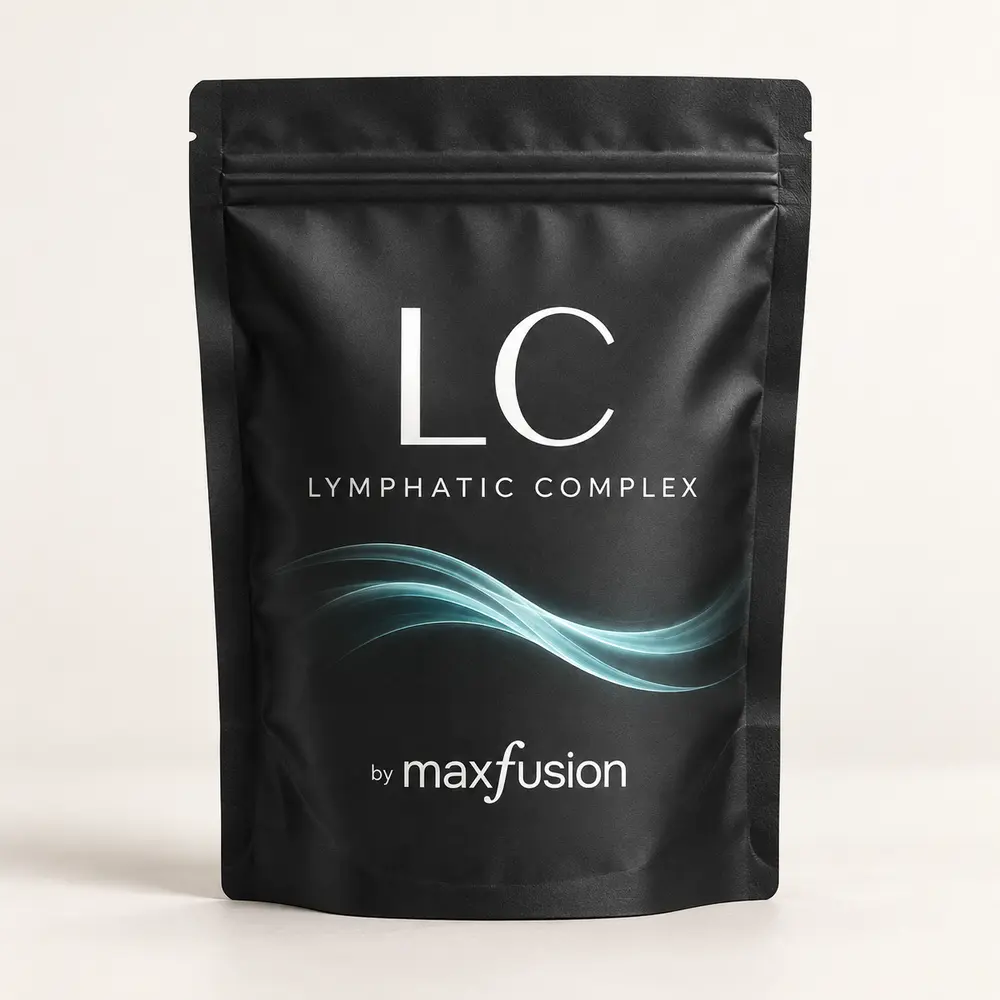
You do not need a full written script. The more material and detail you bring, the better the result, but even a vague idea is enough to start: the skill will offer you scripts and you refine them together.
Step 2: the script gets built on real information
Before writing a word, the skill reads everything you gave it and runs a quick research pass on the product: what it is, how it works, and the language real customers use when they talk about the problem it solves.
The research never shows up as a report. It shows up inside the script, as specificity, using the customer’s own words, so it sounds like it was written by someone who used the product or someone inside your target audience. If you name specific sub-avatars in step 1, the output improves even more.
The research focuses on:
• Web search
• Amazon reviews
• Reddit comments
• Actual customer reviews
Step 3: choose how your product is presented (realistic or claymation)
The skill asks whether the product should appear re-sculpted as a clay replica, or as the real product, staged as a physical prop inside the miniature clay set.
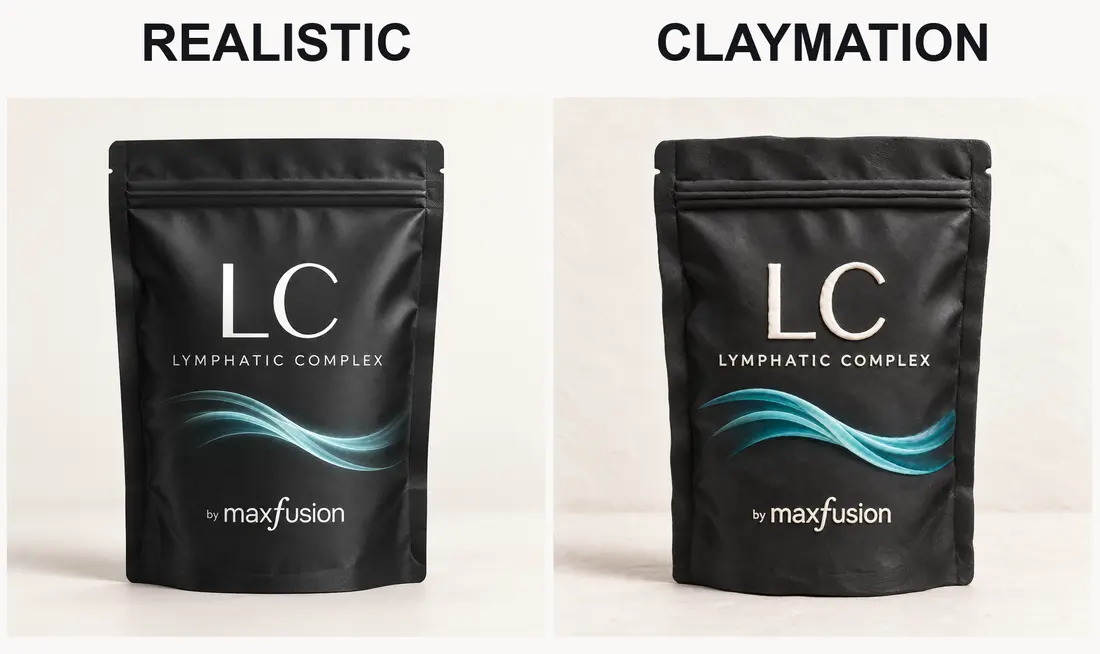
Both options exist because clients split on this. Some want the real product on screen when the CTA lands, and some want the entire ad to hold one style from the first frame to the last.
Step 4: mascot vs. faceless
Many claymation ads follow a sub-avatar character through a process, and many just show the process with narration over it. Some ads have a mascot, and some are faceless.
This is where you decide, based on your script and your story, which style the ad needs. Deciding it here matters: it focuses the creation, and you do not burn generations on regenerating clips in the wrong style.
Step 5: adapting the script to the AI video model
The video model by default is Google Omni. Omni is excellent for claymation, and it is also excellent at text on screen and spoken words. The skill cuts the script to exactly 10 seconds per clip to match it.
You are free to choose another AI video model, and the skill is already prepared for that: it re-cuts the script to the other model’s pace and clip length. This is the step to lock it, because the clip length determines how many spoken words each clip can carry.
Tip: the model swap happens in plain language. Tell Claude which model you want: Seedance 2.0 gives you 15-second clips, Seedance 2.5 goes up to 30 seconds, and MiniMax runs 15. The rest of the pipeline stays the same.
Step 6: the voiceover
The voiceover, by default, is generated inside Google Omni as part of each clip, speaking the exact lines from the script in the voice locked at intake.
You also have the choice to create the voiceover outside the video model. Connect your ElevenLabs API key to Maxfusion AI and your own voice library becomes available in the same chat. That means you can design a voice from scratch, use an existing voice from the hundreds in the Maxfusion AI library, or pull any voice you choose from your own library. Learn how to get consistent voices and master voice generation in the consistent voice guide.
Tip: creating the voiceover outside is crucial if you generate on Seedance or other Chinese models. They tend to get spoken words wrong, and once a mispronounced line is baked into the clip, it is hard to fix.
Step 7: approve, then it generates
When the script, clip map and every per-clip prompt are ready, the skill stops and shows you all of it: the exact text going into each generation call, the model, the aspect ratio, and the clip count.
This is a hard gate. Nothing generates and nothing gets spent before you say yes.
Ask for edits and it revises and shows you what changed. Approve, and it creates a project in Maxfusion AI, uploads your references, and runs the clips. Each finished clip appears in the chat as it completes.
The MCP does more than the skill
The skill is just one part of the MCP. The moment you connect it, the whole system is open in the same conversation, whatever you happen to be making. You can generate music for the ad, operate any part of the system, switch to any model, generate new assets, pull up information from past generations and past conversations, and activate any other skill you need.
Activating the skill never limits you. It runs its pipeline, and everything else in the MCP stays one message away.
It also scales. Generations can run in parallel and at bulk in the same conversation, so a batch of variations fires at once instead of one by one. The full system is in the bulk generation guide.
What still happens outside the chat
The stitch. The skill hands you finished ten-second clips, and joining them into one file is a short job in CapCut or any editor: drop them on a timeline in order and export. If you generated music, it goes under the clips in the same pass.
FAQ
Which model does it use? By default it is designed for Google Omni, but you can choose any video model available in Maxfusion AI, which carries all the state-of-the-art models. New models land as day-0 drops: the moment they release, they are already in the MCP, sometimes even before.
Can I put my own face in the ad? Yes. Share a photo and the skill converts it into a clay figurine. You can appear in the ad, and you can do the same for any character you like.
Do I need a product image? Preferably, yes. Any details and images that need to appear in the ad should be added. If you have none, give a detailed description and the skill designs the product for the ad.
How long can the ad be? As long as you want. It can be 90 seconds and it can be 20 minutes. It is up to you and the number of clips you want to generate and edit.
Can I create different styles of animation with this skill? This skill is designed for claymation-style ads, but in the chat you are free to discuss design changes with Claude. You can also call other skills that already exist in the MCP, like the Pixar ad style skill, the medical animation skill, or the 3D low poly skill.
What should you do now?
The skill is available in the Maxfusion AI MCP. Connect it, drop a product image, ask for a claymation explainer-style ad, and run through the process. Then share the ad with us.
Real examples
We answer questions in Cami’s Ad Creators Lab community and Maxfusion SKOOL community
Format deep-dive: the claymation explainer-style ads skill page.
" height="57.25593113035147px" id="pFbN4t6nI" transform="translate(73 0)" width="138.9190010986328px"/><path d="M 58.958 24.529 L 67.611 12.149 L 59.372 0.274 L 64.067 0.274 L 70.234 9.479 L 76.217 0.274 L 80.774 0.274 L 72.58 12.287 L 81.37 24.529 L 76.723 24.529 L 70.003 15.279 L 63.375 24.529 L 58.957 24.529 Z M 44.566 24.809 C 43.479 24.811 42.396 24.671 41.345 24.394 C 40.359 24.1 39.426 23.649 38.583 23.059 C 37.789 22.45 37.131 21.682 36.65 20.804 C 36.19 19.884 35.96 18.824 35.96 17.628 C 35.96 16.248 36.205 15.082 36.696 14.13 C 37.218 13.18 37.908 12.427 38.768 11.875 C 39.627 11.323 40.624 10.924 41.759 10.679 C 42.924 10.43 44.112 10.306 45.303 10.31 L 52.437 10.31 C 52.437 8.93 52.237 7.733 51.838 6.72 C 51.47 5.708 50.857 4.926 49.998 4.373 C 49.138 3.79 48.003 3.499 46.592 3.499 C 45.786 3.493 44.982 3.585 44.198 3.775 C 43.462 3.959 42.833 4.251 42.311 4.649 C 41.79 5.049 41.406 5.585 41.161 6.26 L 36.972 6.26 C 37.187 5.156 37.602 4.22 38.215 3.453 C 38.848 2.664 39.63 2.008 40.516 1.52 C 41.436 0.998 42.419 0.615 43.462 0.37 C 44.487 0.126 45.538 0.002 46.592 0 C 50.09 0 52.575 1.029 54.048 3.085 C 55.52 5.14 56.257 7.917 56.257 11.415 L 56.257 24.532 L 52.989 24.532 L 52.759 21.448 C 52.084 22.368 51.271 23.075 50.319 23.565 C 49.397 24.047 48.402 24.373 47.374 24.532 C 46.449 24.711 45.509 24.803 44.566 24.808 Z M 44.935 21.356 C 46.469 21.356 47.788 21.111 48.893 20.62 C 50.028 20.098 50.903 19.347 51.516 18.365 C 52.13 17.383 52.436 16.186 52.436 14.775 L 52.436 13.578 L 48.156 13.578 C 47.144 13.578 46.146 13.593 45.165 13.624 C 44.183 13.654 43.293 13.778 42.495 13.992 C 41.698 14.207 41.053 14.575 40.562 15.097 C 40.102 15.618 39.872 16.37 39.872 17.352 C 39.872 18.272 40.102 19.024 40.562 19.607 C 41.053 20.19 41.682 20.635 42.449 20.942 C 43.249 21.218 44.089 21.358 44.935 21.356 Z M 0 24.532 L 0 0.277 L 3.774 0.277 L 3.958 3.177 C 4.48 2.44 5.063 1.842 5.707 1.382 C 6.381 0.922 7.128 0.58 7.917 0.369 C 8.769 0.12 9.652 -0.004 10.54 0.001 C 12.227 0.001 13.593 0.369 14.636 1.105 C 15.669 1.799 16.483 2.773 16.983 3.913 C 17.505 3.119 18.141 2.405 18.87 1.796 C 19.602 1.216 20.427 0.764 21.31 0.461 C 22.23 0.154 23.242 0.001 24.347 0.001 C 26.127 0.001 27.553 0.384 28.627 1.151 C 29.732 1.919 30.53 2.961 31.02 4.281 C 31.511 5.57 31.757 7.027 31.757 8.653 L 31.757 24.532 L 27.845 24.532 L 27.845 10.632 C 27.845 9.835 27.799 9.022 27.707 8.193 C 27.654 7.4 27.467 6.622 27.154 5.892 C 26.848 5.156 26.387 4.572 25.774 4.143 C 25.191 3.683 24.362 3.453 23.288 3.453 C 22.276 3.453 21.417 3.698 20.711 4.189 C 20.036 4.649 19.484 5.279 19.054 6.076 C 18.621 6.885 18.311 7.754 18.134 8.654 C 17.95 9.544 17.858 10.434 17.858 11.323 L 17.858 24.532 L 13.945 24.532 L 13.945 10.586 C 13.945 9.819 13.899 9.022 13.807 8.193 C 13.755 7.405 13.584 6.629 13.301 5.892 C 13.076 5.183 12.623 4.568 12.012 4.143 C 11.429 3.683 10.616 3.453 9.573 3.453 C 8.1 3.453 6.95 3.883 6.121 4.741 C 5.293 5.57 4.71 6.598 4.372 7.825 C 4.07 8.982 3.916 10.173 3.912 11.369 L 3.912 24.532 Z" fill="rgb(21, 22, 27)" height="24.80901853219235px" id="Dy5HPNSvH" transform="translate(0 18.5)" width="81.37000073242189px"/></g></svg>)
" height="32px" id="VmykzZzNe" width="32px"/></svg>)
" height="30.633213969252477px" id="w5KefWMGh" transform="translate(0 1)" width="32px"/></svg>)
" height="32px" id="KxxfrbxU7" width="32px"/></g></svg>)
" height="22.41686631528509px" id="wfz7J8dwQ" transform="translate(0 5)" width="32px"/></svg>)
" height="57.25593113035147px" id="ZNNxR3481" transform="translate(73 0)" width="138.9190010986328px"/><path d="M 58.958 24.529 L 67.611 12.149 L 59.372 0.274 L 64.067 0.274 L 70.234 9.479 L 76.217 0.274 L 80.774 0.274 L 72.58 12.287 L 81.37 24.529 L 76.723 24.529 L 70.003 15.279 L 63.375 24.529 L 58.957 24.529 Z M 44.566 24.809 C 43.479 24.811 42.396 24.671 41.345 24.394 C 40.359 24.1 39.426 23.649 38.583 23.059 C 37.789 22.45 37.131 21.682 36.65 20.804 C 36.19 19.884 35.96 18.824 35.96 17.628 C 35.96 16.248 36.205 15.082 36.696 14.13 C 37.218 13.18 37.908 12.427 38.768 11.875 C 39.627 11.323 40.624 10.924 41.759 10.679 C 42.924 10.43 44.112 10.306 45.303 10.31 L 52.437 10.31 C 52.437 8.93 52.237 7.733 51.838 6.72 C 51.47 5.708 50.857 4.926 49.998 4.373 C 49.138 3.79 48.003 3.499 46.592 3.499 C 45.786 3.493 44.982 3.585 44.198 3.775 C 43.462 3.959 42.833 4.251 42.311 4.649 C 41.79 5.049 41.406 5.585 41.161 6.26 L 36.972 6.26 C 37.187 5.156 37.602 4.22 38.215 3.453 C 38.848 2.664 39.63 2.008 40.516 1.52 C 41.436 0.998 42.419 0.615 43.462 0.37 C 44.487 0.126 45.538 0.002 46.592 0 C 50.09 0 52.575 1.029 54.048 3.085 C 55.52 5.14 56.257 7.917 56.257 11.415 L 56.257 24.532 L 52.989 24.532 L 52.759 21.448 C 52.084 22.368 51.271 23.075 50.319 23.565 C 49.397 24.047 48.402 24.373 47.374 24.532 C 46.449 24.711 45.509 24.803 44.566 24.808 Z M 44.935 21.356 C 46.469 21.356 47.788 21.111 48.893 20.62 C 50.028 20.098 50.903 19.347 51.516 18.365 C 52.13 17.383 52.436 16.186 52.436 14.775 L 52.436 13.578 L 48.156 13.578 C 47.144 13.578 46.146 13.593 45.165 13.624 C 44.183 13.654 43.293 13.778 42.495 13.992 C 41.698 14.207 41.053 14.575 40.562 15.097 C 40.102 15.618 39.872 16.37 39.872 17.352 C 39.872 18.272 40.102 19.024 40.562 19.607 C 41.053 20.19 41.682 20.635 42.449 20.942 C 43.249 21.218 44.089 21.358 44.935 21.356 Z M 0 24.532 L 0 0.277 L 3.774 0.277 L 3.958 3.177 C 4.48 2.44 5.063 1.842 5.707 1.382 C 6.381 0.922 7.128 0.58 7.917 0.369 C 8.769 0.12 9.652 -0.004 10.54 0.001 C 12.227 0.001 13.593 0.369 14.636 1.105 C 15.669 1.799 16.483 2.773 16.983 3.913 C 17.505 3.119 18.141 2.405 18.87 1.796 C 19.602 1.216 20.427 0.764 21.31 0.461 C 22.23 0.154 23.242 0.001 24.347 0.001 C 26.127 0.001 27.553 0.384 28.627 1.151 C 29.732 1.919 30.53 2.961 31.02 4.281 C 31.511 5.57 31.757 7.027 31.757 8.653 L 31.757 24.532 L 27.845 24.532 L 27.845 10.632 C 27.845 9.835 27.799 9.022 27.707 8.193 C 27.654 7.4 27.467 6.622 27.154 5.892 C 26.848 5.156 26.387 4.572 25.774 4.143 C 25.191 3.683 24.362 3.453 23.288 3.453 C 22.276 3.453 21.417 3.698 20.711 4.189 C 20.036 4.649 19.484 5.279 19.054 6.076 C 18.621 6.885 18.311 7.754 18.134 8.654 C 17.95 9.544 17.858 10.434 17.858 11.323 L 17.858 24.532 L 13.945 24.532 L 13.945 10.586 C 13.945 9.819 13.899 9.022 13.807 8.193 C 13.755 7.405 13.584 6.629 13.301 5.892 C 13.076 5.183 12.623 4.568 12.012 4.143 C 11.429 3.683 10.616 3.453 9.573 3.453 C 8.1 3.453 6.95 3.883 6.121 4.741 C 5.293 5.57 4.71 6.598 4.372 7.825 C 4.07 8.982 3.916 10.173 3.912 11.369 L 3.912 24.532 Z" fill="rgb(41, 42, 47)" height="24.80901853219235px" id="MB0beBzDo" transform="translate(0 18.5)" width="81.37000073242189px"/></g></svg>)