How to Build An Entire Meta Ads Campaign Using Claude + Workflows (Free System)
Ori Silver
·
Co-founder, Maxfusion AI
·

For the full video walkthrough of this system, watch: How to Build An Entire Meta Ads Campaign Using Claude + Workflows
Everything in this guide starts from a single product photo and ends with a batch of Meta ad creatives, statics and videos, built on one workflow canvas. You can drive the build with your voice or put it together by hand, node by node.
The stack is Maxfusion AI for the canvas, Claude Code for orchestration, and Wispr Flow for voice input.
Voice-driven setup first, then the manual build.
The product in this example is Thorne Ashwagandha. The formats being cloned come from Goli, a brand that consistently runs strong creatives in the supplements category.
The voice-driven way
If you have a Maxfusion API key plugged into Claude Code, the whole pipeline runs off your voice.
Open Claude Code, point it at your asset folder, hit the mic with Wispr Flow, and say something like “look at my product image and use the templates to create multiple variation ads on the canvas.”
Claude reads the markdown files, loads the skills, and builds every node on the canvas for you. You inspect what it built, press play, and the ads render.
The full voice setup, the Claude Code install, the folder structure, and the prompt patterns are all covered in the video walkthrough linked at the top.
The rest of this article is the manual version. Same nodes, built by hand, no API key required.
Setting up the manual build
Open Maxfusion AI Workflows inside your workspace and you get an empty canvas. Everything below is built on it, one node at a time.
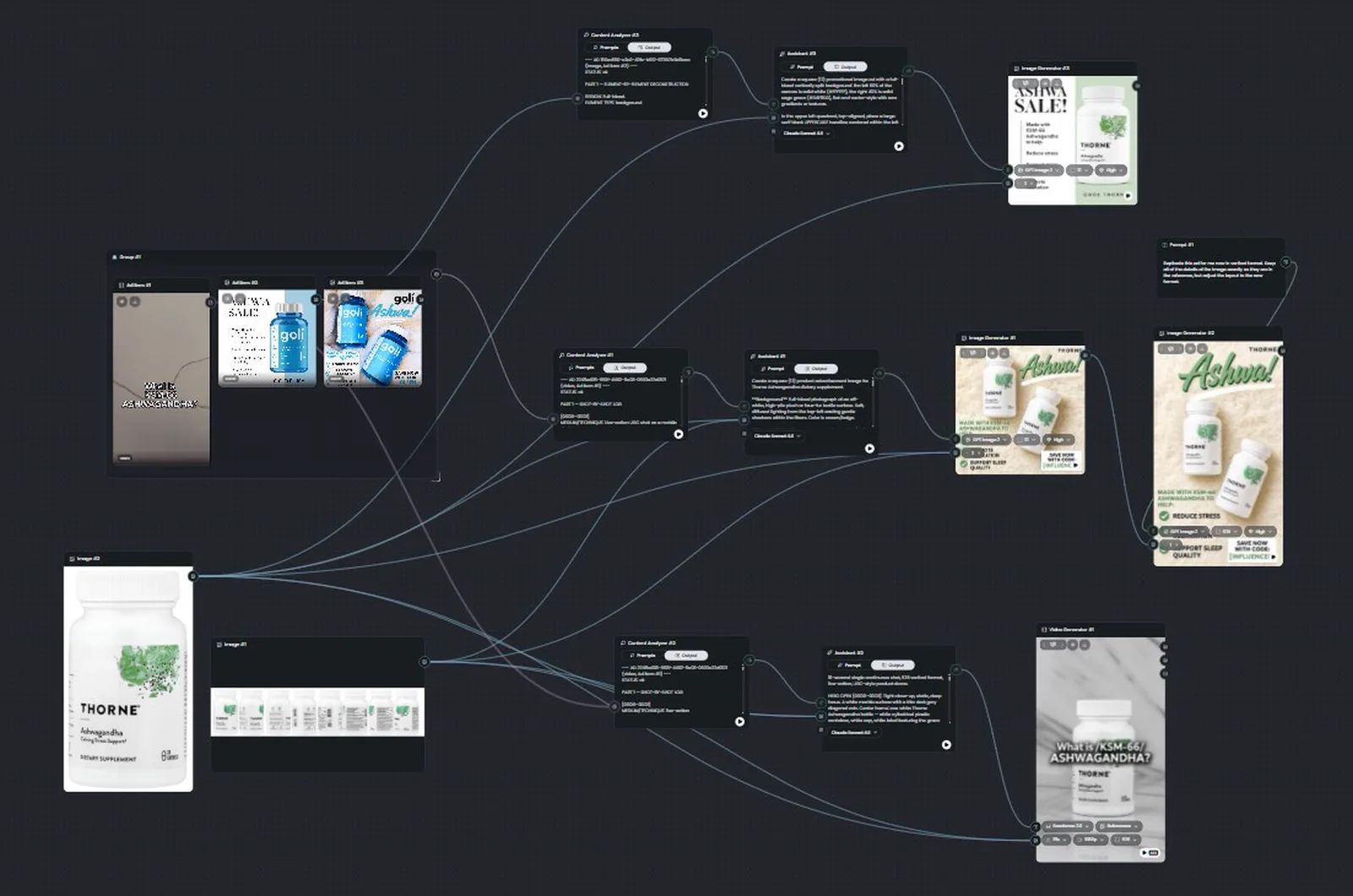
Step 1: Add the Research Node
Drop a Research Node onto the canvas. It connects straight to the Meta Ad Library API and pulls real, currently running ad creatives into your workspace.
There are two ways to query it. Paste a Meta Ad Library URL to target one specific competitor and pull their whole library, or type a keyword to surface the top performers across the niche no matter which brand made them.
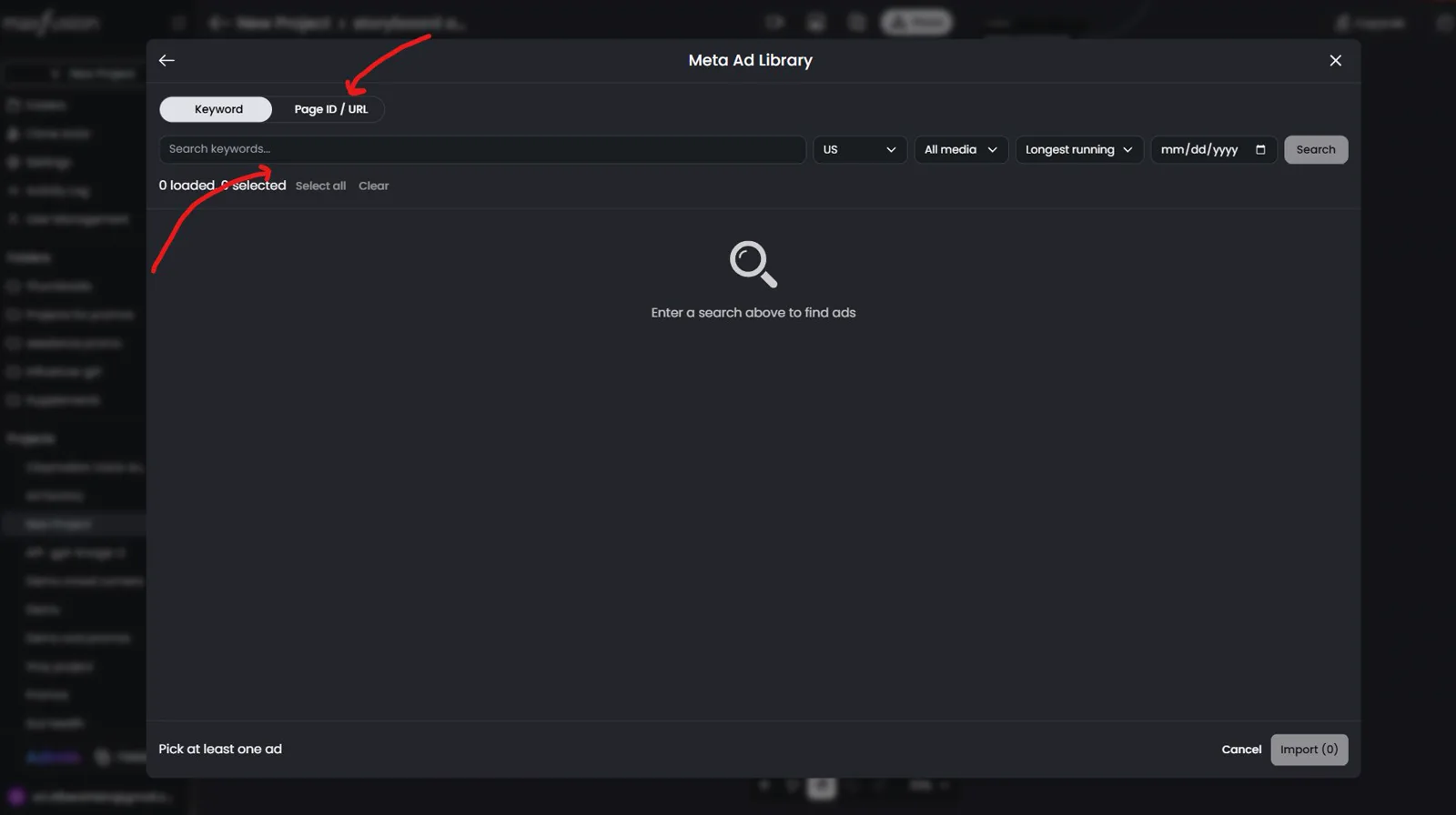
This is the step that stops you from inventing formats from zero. You scan what is already converting, pick the layouts worth copying, and feed them into the rest of the pipeline.
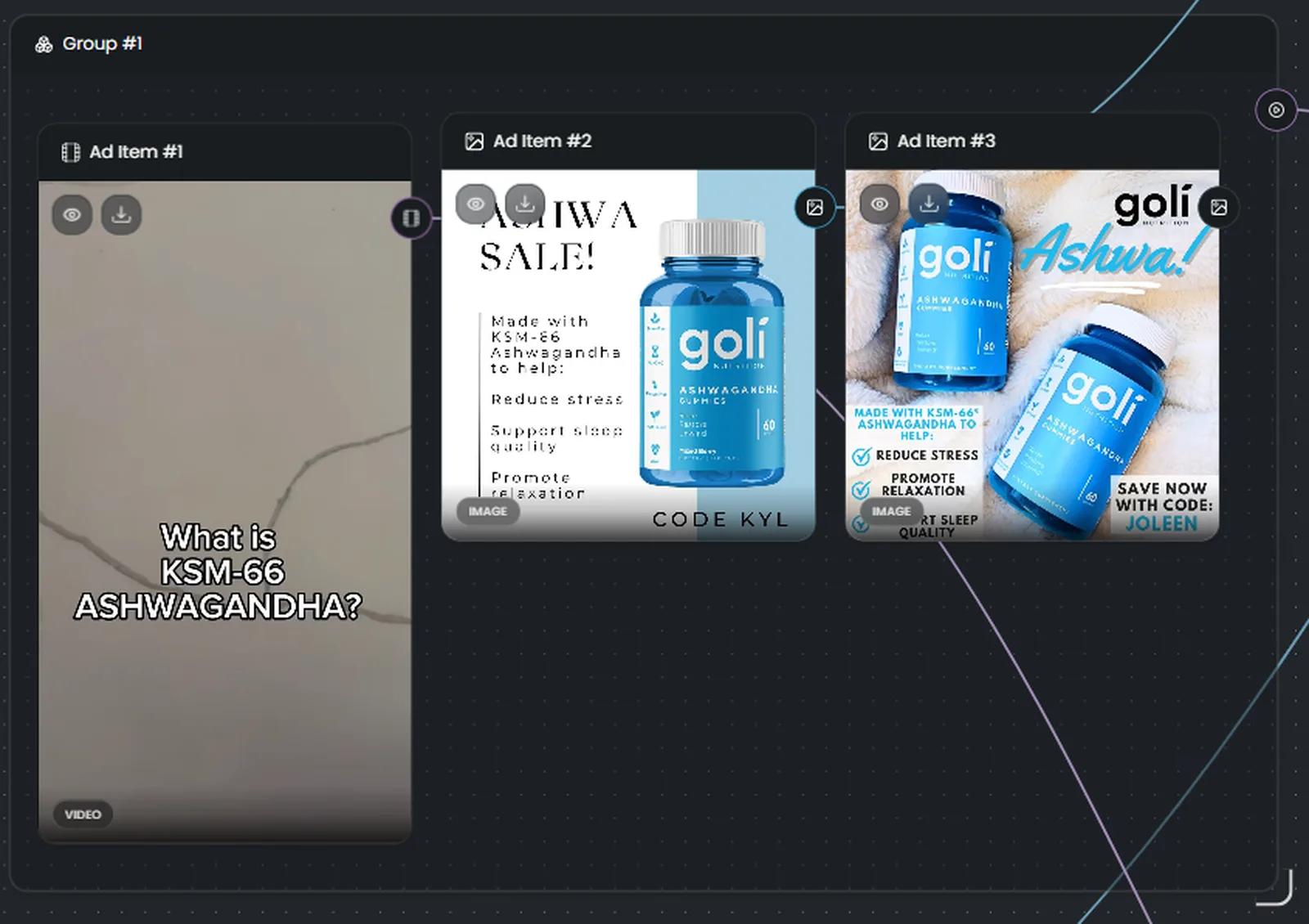
For this demo I searched “Goli Ashwagandha” in the keyword field and picked a few winning layouts.
Step 2: Add the Content Analyzer Node
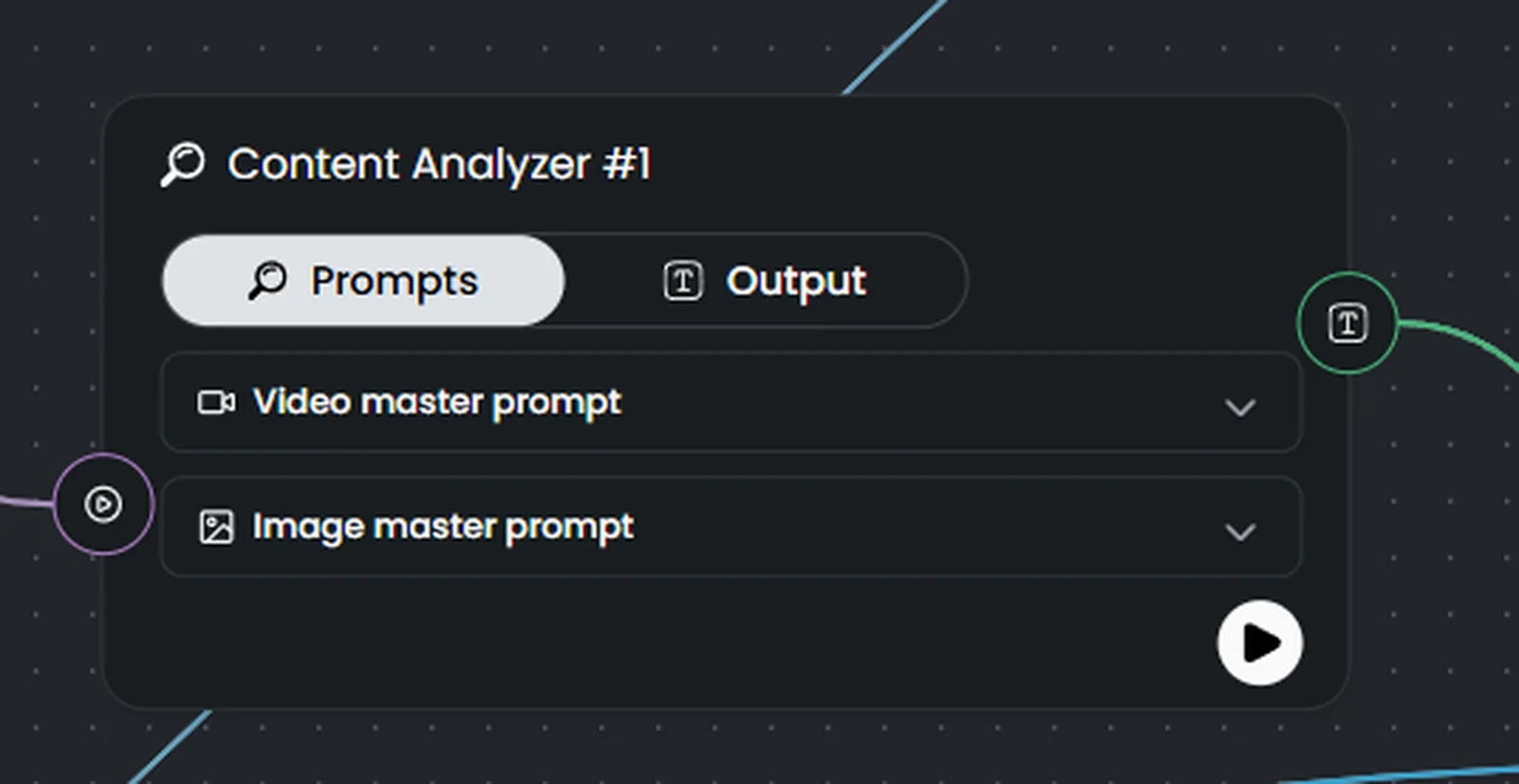
Drag out a Content Analyzer Node and connect it to your research results. It studies the layout of the competitor ad, detects where the text sits, and returns a structural breakdown you can build on.
The node ships with master prompts pre-baked for both video and image analysis. You can customize the prompt text, but on a first run, leave the masters alone.
This is the node that turns the competitor’s ad into a recreation with your product injected into it.
Step 3: Add the LLM node (Assistant)
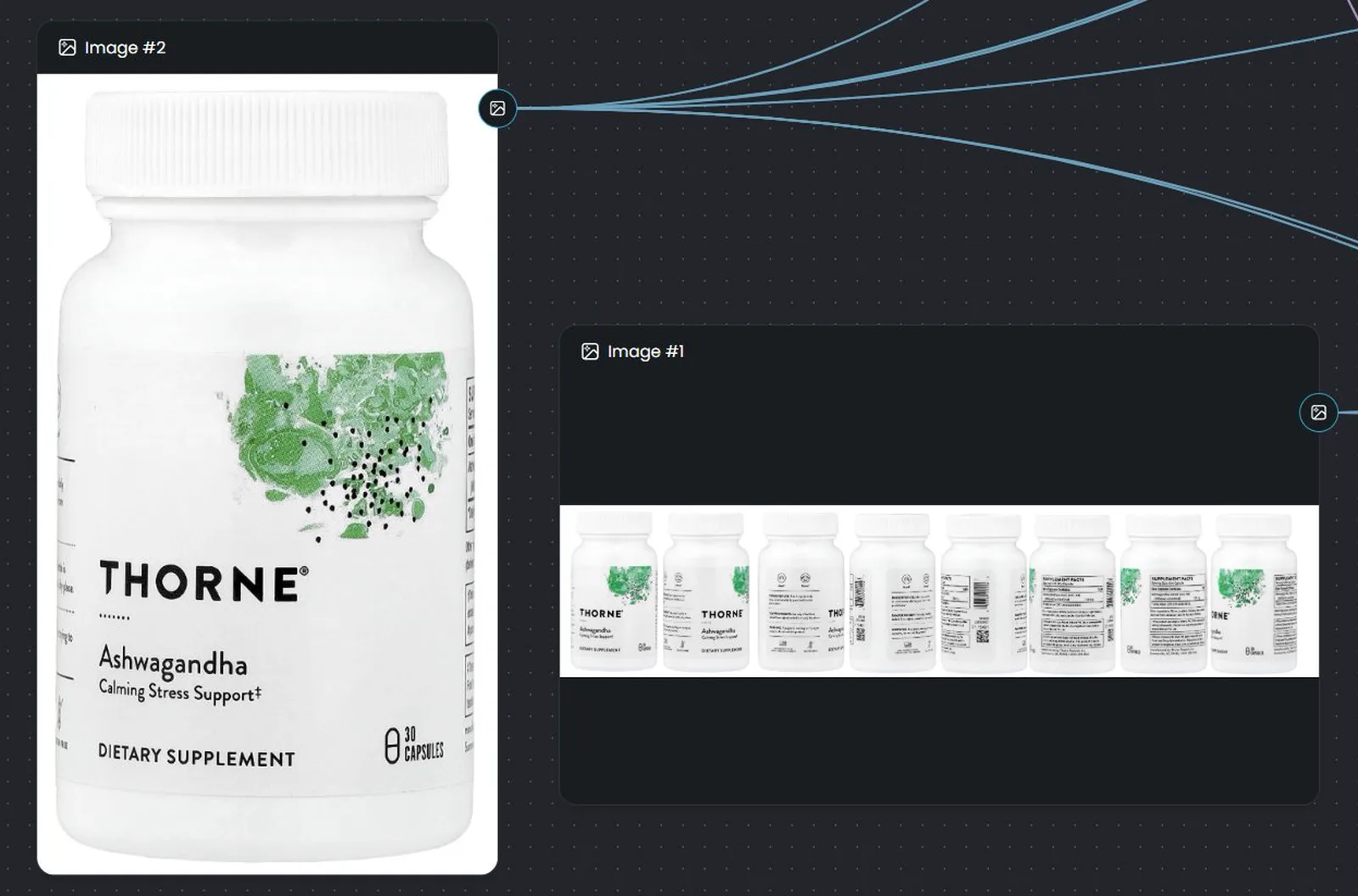
This is the core LLM engine of the pipeline, and it takes two inputs: the structural breakdown from the Content Analyzer, plus your original product photo.
One clear, high-quality image where the bottle text reads cleanly is enough. I used a panoramic multi-angle view of the Thorne bottle, but you don’t need that level of coverage to get a clean output.
Input into it the following prompt:
You have an image of my product and breakdowns of several Goli image ads above. Pick the single strongest ad concept. Look at my product image - note the can, color, and branding. Then write one image-generation prompt that recreates that ad’s composition and on-screen text, swapped to my product. Describe the layout, background, lighting, color palette, and all on-screen text word for word. Match the product to the reference image. Output only the prompt.
The Assistant runs through the sequence and writes a brand-new master prompt built to place your product inside the competitor’s framework.
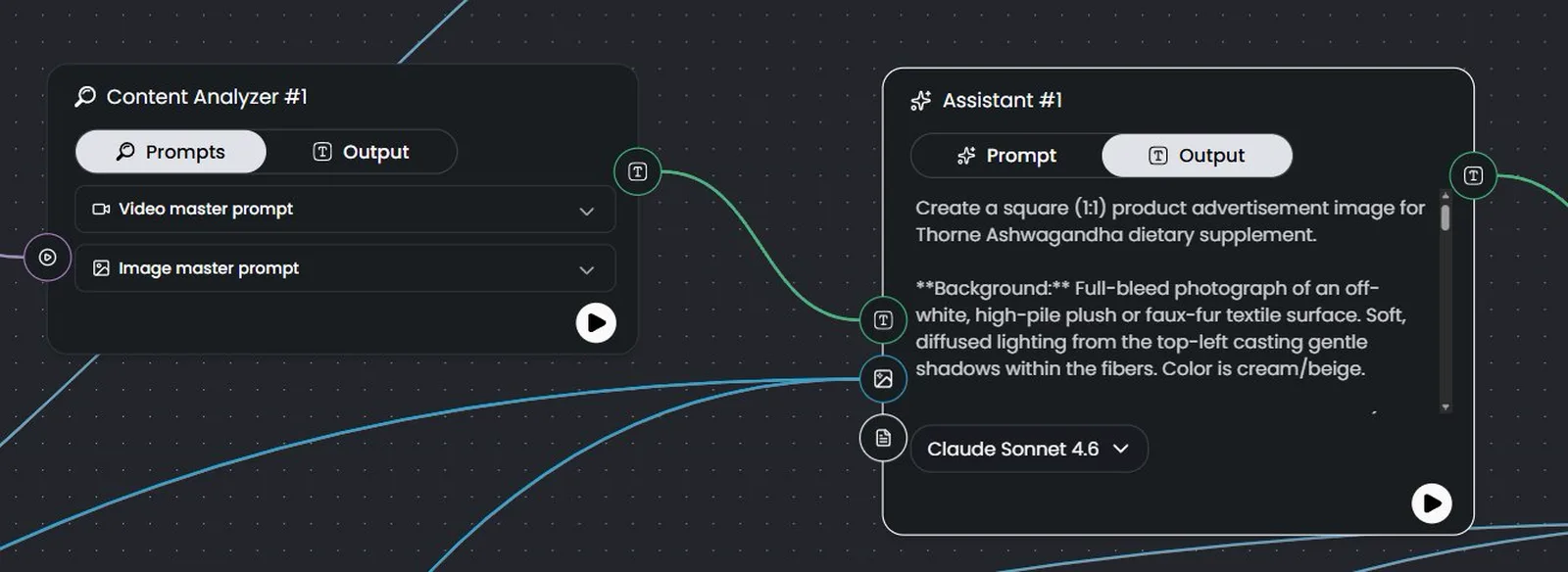
Step 4: Connect the Image Generator Node
Connect the LLM node to an Image Generator Node. It takes the master prompt plus your product photo, builds the layout, and outputs a static ad with the competitor’s style applied to your brand.
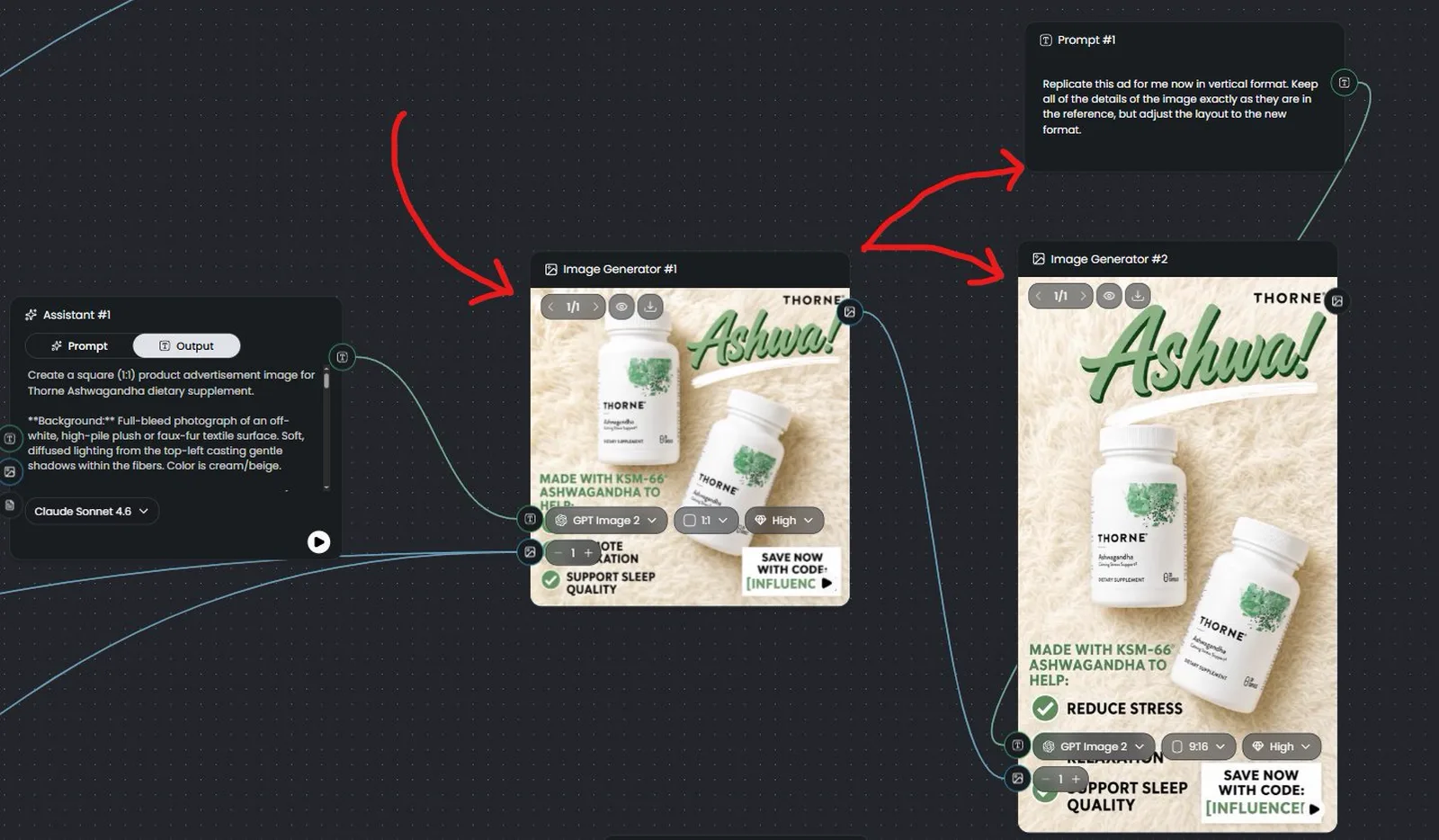
The system runs jobs in parallel, so you can connect multiple Image Generator Nodes to the same LLM output and fire off a whole batch of variations in one go.
Important note. You can add another prompt node with the prompt:
Replicate this ad for me now in vertical format. Keep all of the details of the image exactly as they are in the reference, but adjust the layout to the new format.
Connect the image generator’s output to this prompt with any size, and you can resize every image at once: 1:1, 9:16, or any other ratio, all made at the same time.
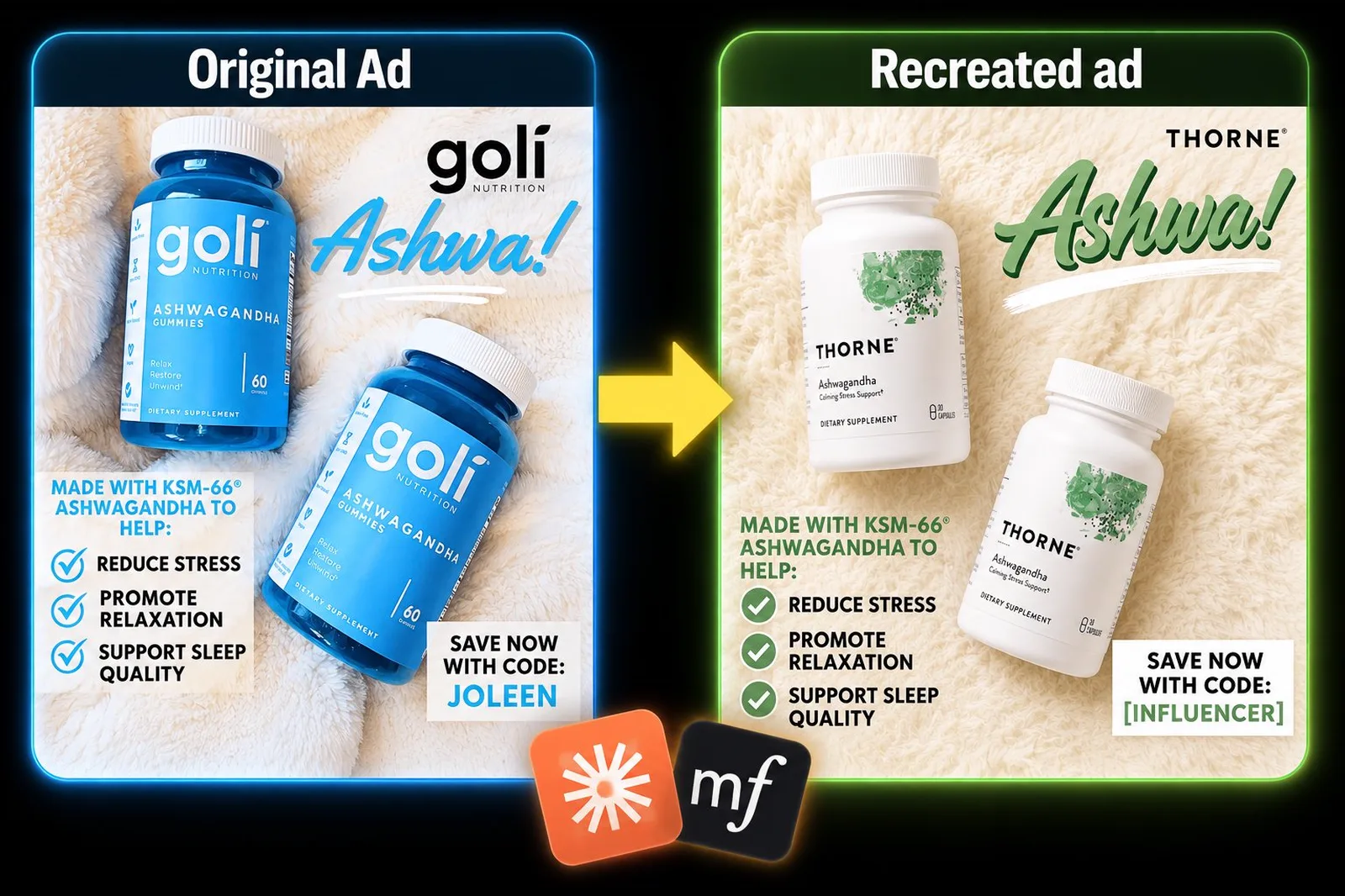
That’s how one product photo turns into dozens of static ads across formats. You can pop out 50 to 100 different statics in a single run.
Here is a before and after example (you can drop in any promo “Code” text and it renders correctly):
Now do the same for video
Once the statics are running, the same canvas flips into video mode. Four nodes again, with different inputs and a couple of settings to change.
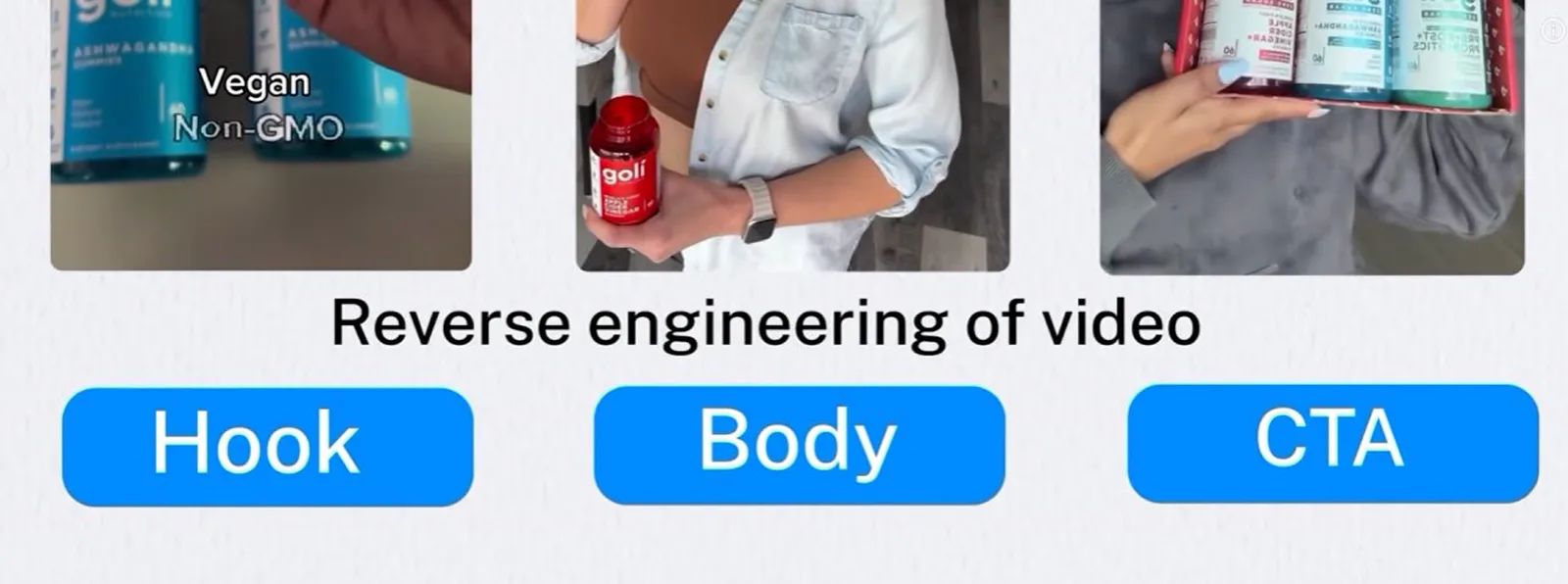
You take a winning video ad from a competitor’s feed, reverse-engineer the hook and pacing, and rebuild it shot for shot with your product inside the same structure.
Step 1: Pull a video reference into the Research Node
Go back to the Research Node from the static workflow. This time, instead of static graphics, find a high-performing video ad in the competitor’s library.
Starting from an existing ad means the format is already proven. You work from a validated baseline instead of testing your own creative from zero.
Grab the video reference and connect it straight into the Content Analyzer Node.
Step 2: Run the video through the Content Analyzer
Same Content Analyzer Node as before, but now it uses the pre-baked video master prompt, which dissects the hook, the visual pacing, and the transcript.
No cutting frames by hand, no rewriting scripts from scratch. The analyzer hands you a structural blueprint of the winning ad.
Step 3: Feed your product into the Assistant Node
Connect the analyzer’s output into an Assistant Node, and connect your original product image into the same node.
The Assistant reads the video breakdown, looks at your product photo, and drafts the prompt sequence needed to recreate the ad with your product swapped in. Same logic as the static workflow, different inputs.
Input into it the following prompt:
You’re writing a video-generation prompt for Seedance. You have two inputs: an image of my product, and a full breakdown of a 15-second recipe-style video ad. First, look at the product image and note exactly what it is - the container, the color, the branding, and the supplement itself, Then take the ad’s structure from the breakdown and rewrite it for my product, beat for beat: then build it from scratch in order - matching the original pacing.
Step 4: Output via the Video Generator Node
Connect the Assistant to a Video Generator Node. A few settings to change before the run: set the model to Seedance 2.0, the duration to 15 seconds, and the aspect ratio to vertical 9:16, which is native for X, Reels, and TikTok.
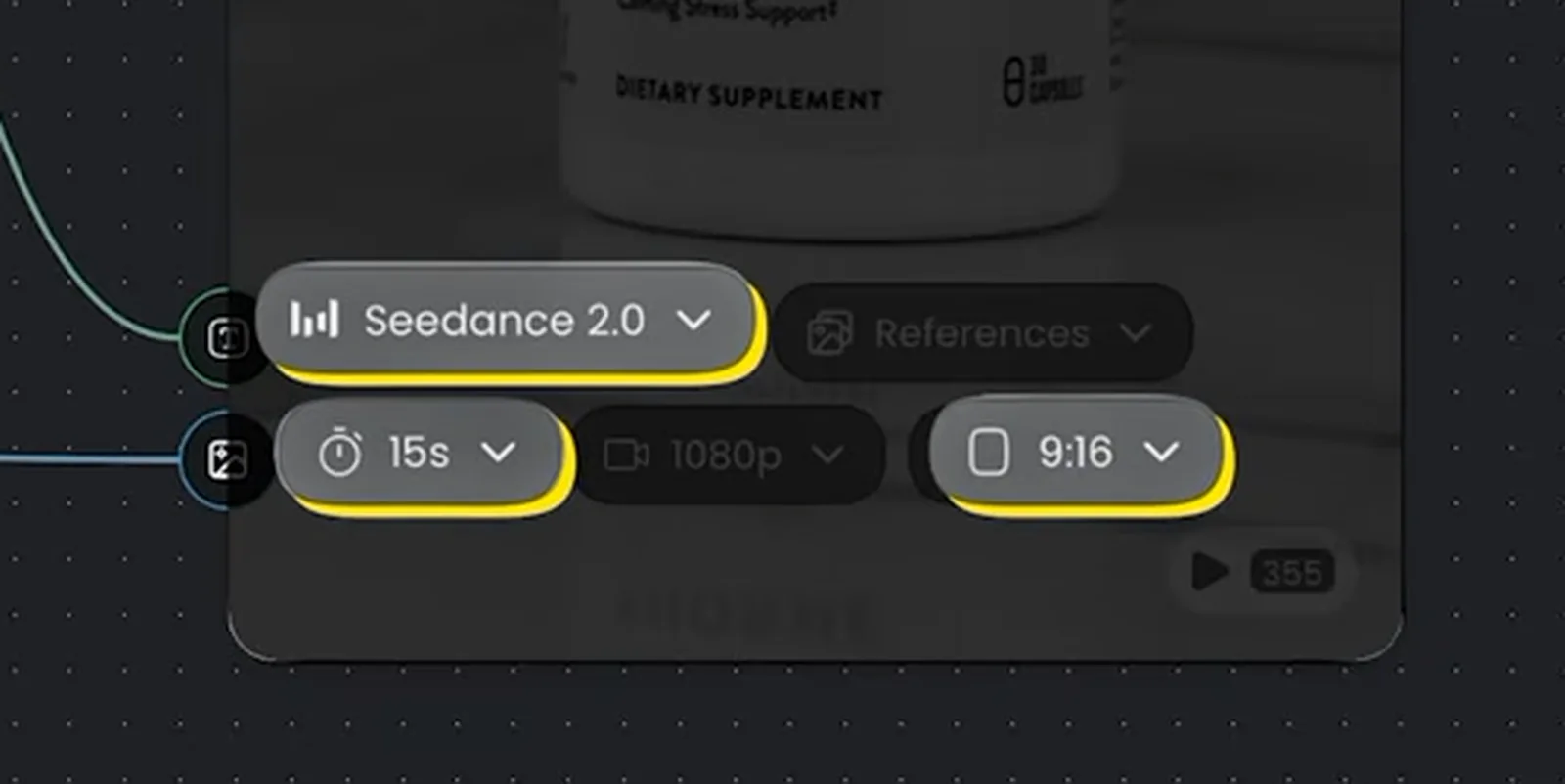
Connect your product image reference into the Video Generator Node alongside the prompt input coming from the Assistant, and hit run. The canvas takes the original video and recreates it frame for frame with your product branding inside it.
And because the canvas is modular, you can duplicate the node chain to test five different competitor formats in parallel, or run completely different products at the same time.
Grab the workflow
The complete workflow from this build, with all assets included, is free to duplicate into your own workspace.
One canvas from research to render
Every stage of this system lives in the same place: pulling competitor ads, breaking down their structure, writing the prompts, and rendering statics and video from a single product photo. You can build it by hand on the canvas, or let your agent drive the whole thing through the MCP inside Claude or ChatGPT.
To research, create, and build your creative assets for Meta campaigns, the best all-rounder that has everything you need in one platform is Maxfusion AI.
" height="57.25593113035147px" id="pFbN4t6nI" transform="translate(73 0)" width="138.9190010986328px"/><path d="M 58.958 24.529 L 67.611 12.149 L 59.372 0.274 L 64.067 0.274 L 70.234 9.479 L 76.217 0.274 L 80.774 0.274 L 72.58 12.287 L 81.37 24.529 L 76.723 24.529 L 70.003 15.279 L 63.375 24.529 L 58.957 24.529 Z M 44.566 24.809 C 43.479 24.811 42.396 24.671 41.345 24.394 C 40.359 24.1 39.426 23.649 38.583 23.059 C 37.789 22.45 37.131 21.682 36.65 20.804 C 36.19 19.884 35.96 18.824 35.96 17.628 C 35.96 16.248 36.205 15.082 36.696 14.13 C 37.218 13.18 37.908 12.427 38.768 11.875 C 39.627 11.323 40.624 10.924 41.759 10.679 C 42.924 10.43 44.112 10.306 45.303 10.31 L 52.437 10.31 C 52.437 8.93 52.237 7.733 51.838 6.72 C 51.47 5.708 50.857 4.926 49.998 4.373 C 49.138 3.79 48.003 3.499 46.592 3.499 C 45.786 3.493 44.982 3.585 44.198 3.775 C 43.462 3.959 42.833 4.251 42.311 4.649 C 41.79 5.049 41.406 5.585 41.161 6.26 L 36.972 6.26 C 37.187 5.156 37.602 4.22 38.215 3.453 C 38.848 2.664 39.63 2.008 40.516 1.52 C 41.436 0.998 42.419 0.615 43.462 0.37 C 44.487 0.126 45.538 0.002 46.592 0 C 50.09 0 52.575 1.029 54.048 3.085 C 55.52 5.14 56.257 7.917 56.257 11.415 L 56.257 24.532 L 52.989 24.532 L 52.759 21.448 C 52.084 22.368 51.271 23.075 50.319 23.565 C 49.397 24.047 48.402 24.373 47.374 24.532 C 46.449 24.711 45.509 24.803 44.566 24.808 Z M 44.935 21.356 C 46.469 21.356 47.788 21.111 48.893 20.62 C 50.028 20.098 50.903 19.347 51.516 18.365 C 52.13 17.383 52.436 16.186 52.436 14.775 L 52.436 13.578 L 48.156 13.578 C 47.144 13.578 46.146 13.593 45.165 13.624 C 44.183 13.654 43.293 13.778 42.495 13.992 C 41.698 14.207 41.053 14.575 40.562 15.097 C 40.102 15.618 39.872 16.37 39.872 17.352 C 39.872 18.272 40.102 19.024 40.562 19.607 C 41.053 20.19 41.682 20.635 42.449 20.942 C 43.249 21.218 44.089 21.358 44.935 21.356 Z M 0 24.532 L 0 0.277 L 3.774 0.277 L 3.958 3.177 C 4.48 2.44 5.063 1.842 5.707 1.382 C 6.381 0.922 7.128 0.58 7.917 0.369 C 8.769 0.12 9.652 -0.004 10.54 0.001 C 12.227 0.001 13.593 0.369 14.636 1.105 C 15.669 1.799 16.483 2.773 16.983 3.913 C 17.505 3.119 18.141 2.405 18.87 1.796 C 19.602 1.216 20.427 0.764 21.31 0.461 C 22.23 0.154 23.242 0.001 24.347 0.001 C 26.127 0.001 27.553 0.384 28.627 1.151 C 29.732 1.919 30.53 2.961 31.02 4.281 C 31.511 5.57 31.757 7.027 31.757 8.653 L 31.757 24.532 L 27.845 24.532 L 27.845 10.632 C 27.845 9.835 27.799 9.022 27.707 8.193 C 27.654 7.4 27.467 6.622 27.154 5.892 C 26.848 5.156 26.387 4.572 25.774 4.143 C 25.191 3.683 24.362 3.453 23.288 3.453 C 22.276 3.453 21.417 3.698 20.711 4.189 C 20.036 4.649 19.484 5.279 19.054 6.076 C 18.621 6.885 18.311 7.754 18.134 8.654 C 17.95 9.544 17.858 10.434 17.858 11.323 L 17.858 24.532 L 13.945 24.532 L 13.945 10.586 C 13.945 9.819 13.899 9.022 13.807 8.193 C 13.755 7.405 13.584 6.629 13.301 5.892 C 13.076 5.183 12.623 4.568 12.012 4.143 C 11.429 3.683 10.616 3.453 9.573 3.453 C 8.1 3.453 6.95 3.883 6.121 4.741 C 5.293 5.57 4.71 6.598 4.372 7.825 C 4.07 8.982 3.916 10.173 3.912 11.369 L 3.912 24.532 Z" fill="rgb(21, 22, 27)" height="24.80901853219235px" id="Dy5HPNSvH" transform="translate(0 18.5)" width="81.37000073242189px"/></g></svg>)
" height="32px" id="VmykzZzNe" width="32px"/></svg>)
" height="30.633213969252477px" id="w5KefWMGh" transform="translate(0 1)" width="32px"/></svg>)
" height="32px" id="KxxfrbxU7" width="32px"/></g></svg>)
" height="22.41686631528509px" id="wfz7J8dwQ" transform="translate(0 5)" width="32px"/></svg>)
" height="57.25593113035147px" id="ZNNxR3481" transform="translate(73 0)" width="138.9190010986328px"/><path d="M 58.958 24.529 L 67.611 12.149 L 59.372 0.274 L 64.067 0.274 L 70.234 9.479 L 76.217 0.274 L 80.774 0.274 L 72.58 12.287 L 81.37 24.529 L 76.723 24.529 L 70.003 15.279 L 63.375 24.529 L 58.957 24.529 Z M 44.566 24.809 C 43.479 24.811 42.396 24.671 41.345 24.394 C 40.359 24.1 39.426 23.649 38.583 23.059 C 37.789 22.45 37.131 21.682 36.65 20.804 C 36.19 19.884 35.96 18.824 35.96 17.628 C 35.96 16.248 36.205 15.082 36.696 14.13 C 37.218 13.18 37.908 12.427 38.768 11.875 C 39.627 11.323 40.624 10.924 41.759 10.679 C 42.924 10.43 44.112 10.306 45.303 10.31 L 52.437 10.31 C 52.437 8.93 52.237 7.733 51.838 6.72 C 51.47 5.708 50.857 4.926 49.998 4.373 C 49.138 3.79 48.003 3.499 46.592 3.499 C 45.786 3.493 44.982 3.585 44.198 3.775 C 43.462 3.959 42.833 4.251 42.311 4.649 C 41.79 5.049 41.406 5.585 41.161 6.26 L 36.972 6.26 C 37.187 5.156 37.602 4.22 38.215 3.453 C 38.848 2.664 39.63 2.008 40.516 1.52 C 41.436 0.998 42.419 0.615 43.462 0.37 C 44.487 0.126 45.538 0.002 46.592 0 C 50.09 0 52.575 1.029 54.048 3.085 C 55.52 5.14 56.257 7.917 56.257 11.415 L 56.257 24.532 L 52.989 24.532 L 52.759 21.448 C 52.084 22.368 51.271 23.075 50.319 23.565 C 49.397 24.047 48.402 24.373 47.374 24.532 C 46.449 24.711 45.509 24.803 44.566 24.808 Z M 44.935 21.356 C 46.469 21.356 47.788 21.111 48.893 20.62 C 50.028 20.098 50.903 19.347 51.516 18.365 C 52.13 17.383 52.436 16.186 52.436 14.775 L 52.436 13.578 L 48.156 13.578 C 47.144 13.578 46.146 13.593 45.165 13.624 C 44.183 13.654 43.293 13.778 42.495 13.992 C 41.698 14.207 41.053 14.575 40.562 15.097 C 40.102 15.618 39.872 16.37 39.872 17.352 C 39.872 18.272 40.102 19.024 40.562 19.607 C 41.053 20.19 41.682 20.635 42.449 20.942 C 43.249 21.218 44.089 21.358 44.935 21.356 Z M 0 24.532 L 0 0.277 L 3.774 0.277 L 3.958 3.177 C 4.48 2.44 5.063 1.842 5.707 1.382 C 6.381 0.922 7.128 0.58 7.917 0.369 C 8.769 0.12 9.652 -0.004 10.54 0.001 C 12.227 0.001 13.593 0.369 14.636 1.105 C 15.669 1.799 16.483 2.773 16.983 3.913 C 17.505 3.119 18.141 2.405 18.87 1.796 C 19.602 1.216 20.427 0.764 21.31 0.461 C 22.23 0.154 23.242 0.001 24.347 0.001 C 26.127 0.001 27.553 0.384 28.627 1.151 C 29.732 1.919 30.53 2.961 31.02 4.281 C 31.511 5.57 31.757 7.027 31.757 8.653 L 31.757 24.532 L 27.845 24.532 L 27.845 10.632 C 27.845 9.835 27.799 9.022 27.707 8.193 C 27.654 7.4 27.467 6.622 27.154 5.892 C 26.848 5.156 26.387 4.572 25.774 4.143 C 25.191 3.683 24.362 3.453 23.288 3.453 C 22.276 3.453 21.417 3.698 20.711 4.189 C 20.036 4.649 19.484 5.279 19.054 6.076 C 18.621 6.885 18.311 7.754 18.134 8.654 C 17.95 9.544 17.858 10.434 17.858 11.323 L 17.858 24.532 L 13.945 24.532 L 13.945 10.586 C 13.945 9.819 13.899 9.022 13.807 8.193 C 13.755 7.405 13.584 6.629 13.301 5.892 C 13.076 5.183 12.623 4.568 12.012 4.143 C 11.429 3.683 10.616 3.453 9.573 3.453 C 8.1 3.453 6.95 3.883 6.121 4.741 C 5.293 5.57 4.71 6.598 4.372 7.825 C 4.07 8.982 3.916 10.173 3.912 11.369 L 3.912 24.532 Z" fill="rgb(41, 42, 47)" height="24.80901853219235px" id="MB0beBzDo" transform="translate(0 18.5)" width="81.37000073242189px"/></g></svg>)