How to Make a Singing Ad With AI in Under 25 Minutes
Ori Silver
·
Co-founder, Maxfusion AI
·

Singing ads usually take a ridiculous amount of back and forth to make properly. You script the song, get the visuals right, keep the character consistent, and then stitch the whole thing together.
I wanted to see how much of that I could cut with Opus 5.5 and the Maxfusion MCP, so I built a skill that takes me from an idea to a finished singing ad in under 25 minutes.
This guide walks through the exact process: why the script and the song matter more than most people think, the mistake that kills retention on these ads, and how most of the production runs on autopilot.
The finished ad first
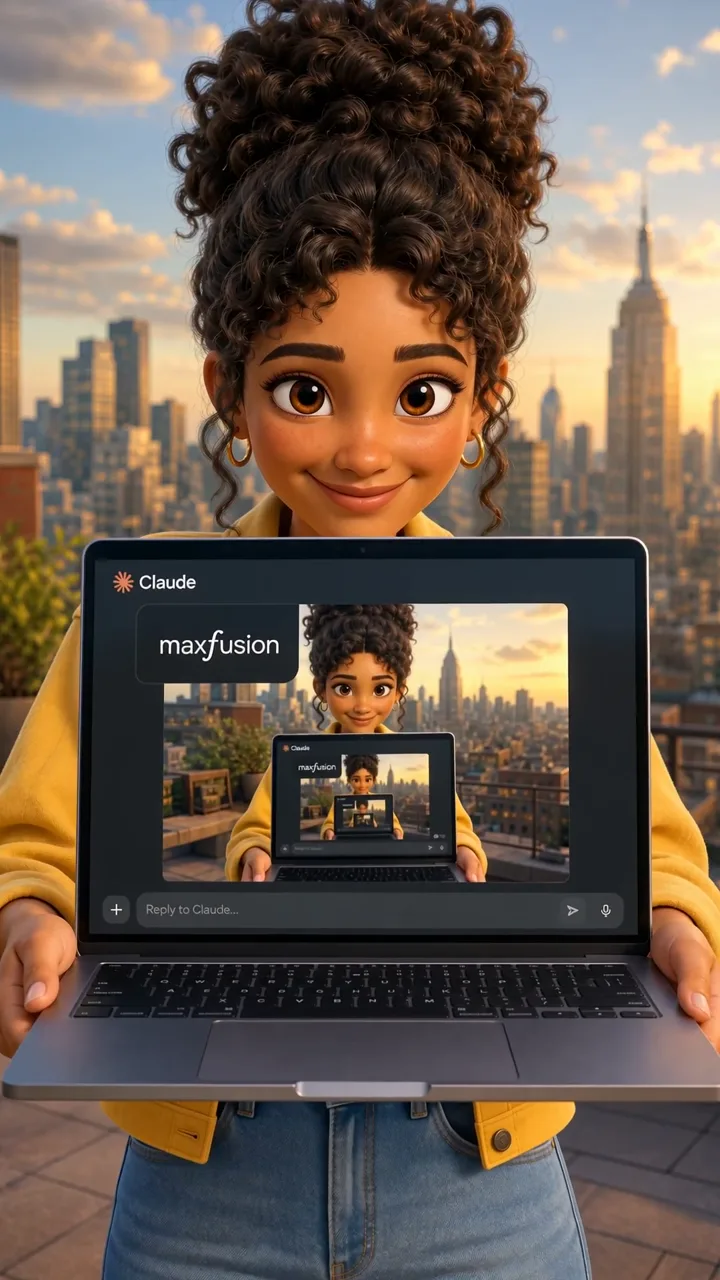
The ad above is a commercial for Maxfusion AI. It was made with the exact process in this article.
The process at a glance
1. Script: write a normal ad script, then turn it into lyrics.
2. Song: generate the song with the vocals starting at second zero.
3. Timing map: find the exact second every word is sung.
4. Visuals: a character sheet, then a shot sheet for every shot.
5. Videos: turn each shot sheet into a clip with Seedance 2.0.
6. Edit: cut the clips to the timing map and lay the song on top.
Every part has a few specific things you have to get right. If you miss them, you go in circles and waste a lot of money on generations you throw away.
Stage 1: the script
If you ask Claude or Codex to “give me a singing ad for my product,” you get a jingle back with verses, a chorus and rhymes that don’t sell anything.
Think of the singing as the format and nothing more. The script you need is the same script you’d write for a spoken ad: a hook, the problem, why other options failed, your product, and a call to action. Write that first, then turn it into a song.
The more specific the script is, the better the ad gets. Name the exact problem your customer has and exactly what your product does about it.
This assumes you’ve already done your research. Know which sub-avatar you’re talking to and what awareness level they’re at, because an unaware viewer and a problem-aware viewer need different scripts.
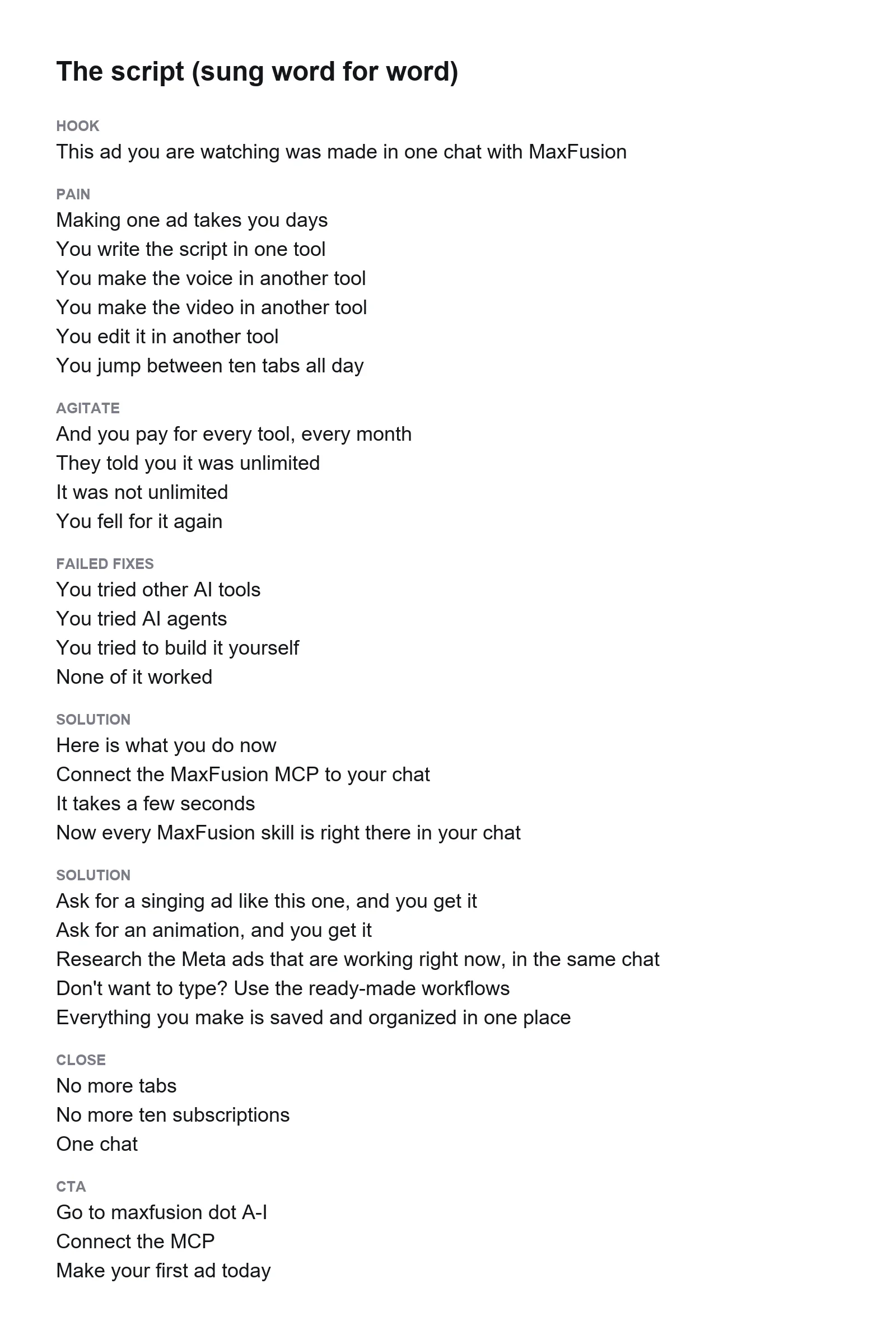
Stage 2: the song
If you don’t know much about music genres, expect to experiment. You’ll generate a lot of versions before one works.
Every time you listen to a version, check two things:
1. You can understand every word on the first listen.
2. The pacing holds. Songs stretch and squeeze words to fit the melody, and in an ad that can mean the line that sells your product gets rushed past.
Stay away from genres that are hard to listen to, like heavy metal. For the Maxfusion ad, R&B at around 120 BPM worked best. Your script and your product change what fits, so test it.
If you don’t know where to start, reverse engineer ads that already work. Find a singing ad you like, figure out its genre, and use that as your starting point. Most singing ads are made with Suno, and Suno lets you upload an audio file and remix it, so you can upload an existing ad’s audio and use it to reverse prompt the style you want.
I made the song through the Maxfusion MCP without leaving the chat, and that step is built into the skill.
The mistake that kills retention
Songs usually open with a few seconds of music before anyone sings. In an ad, those are the seconds your viewer scrolls away.
When you write the music prompt:
1. Tell it the vocals start at the very first second, from 00:00.
2. Keep anything that suggests an opener, like a build-up, out of the style prompt. It should sound like you dropped in halfway through the song.
However good a song sounds, if the singing doesn’t start at second zero, the ad will fail.
The song is the backbone of the ad, because it is the script. You can regenerate any shot and recut any clip later, but if you change the song, you redo everything.
Stage 3: the timing map
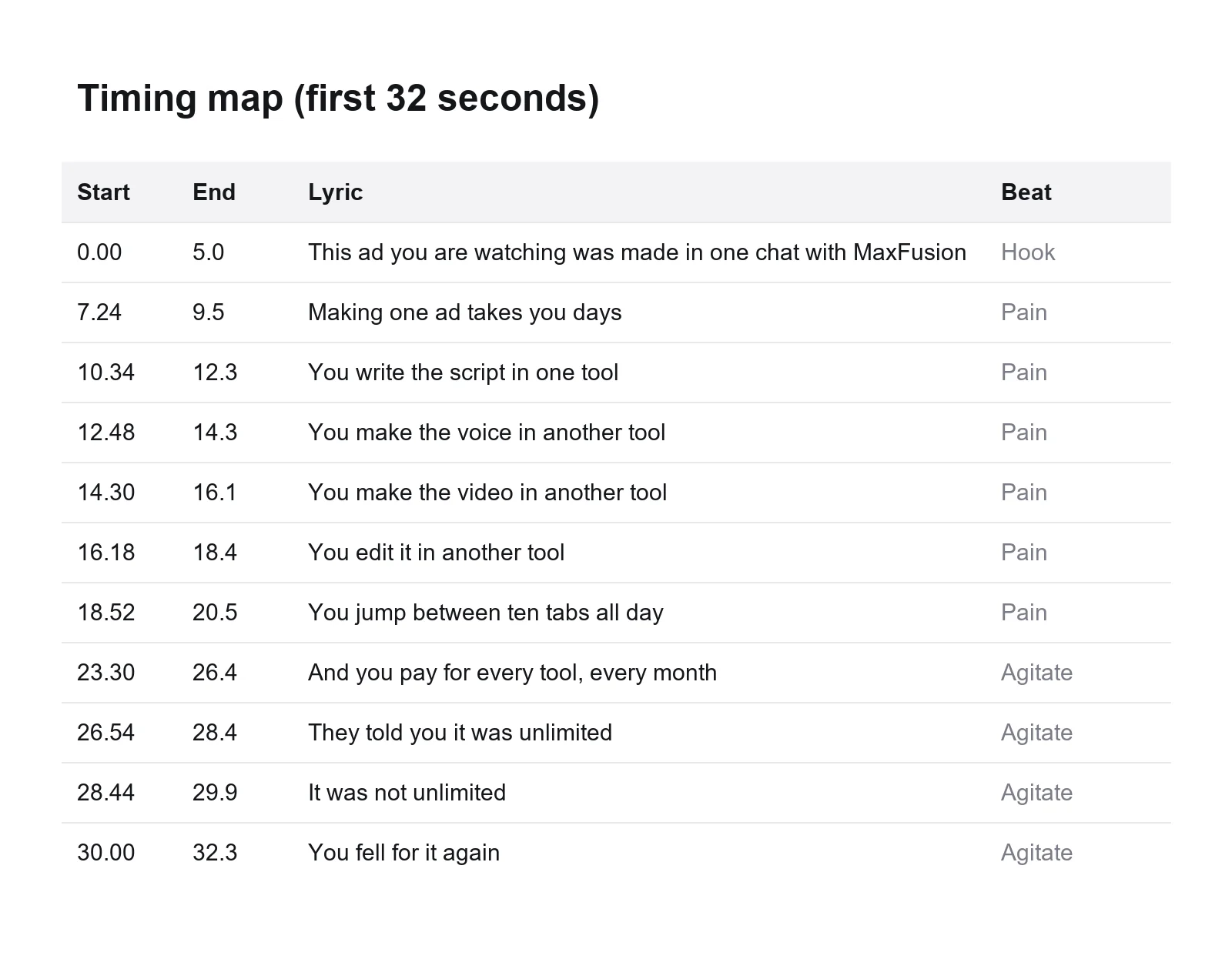
Before you make a single image, let Claude listen to the song and write down every word with the exact second it’s sung.
Turn that into a timing map: a table with every shot, what happens in it, its start and end time, and the words sung during it.
That table decides what each shot shows and how many seconds each clip needs. Skip it, and your shots won’t line up with the song, and you’ll fix it by hand in the edit.
Stage 4: the visuals
Make these ads with image-to-video. Text-to-video can’t keep a character consistent between shots.
Start with a character sheet: the same character four times on a plain background, a close-up of the face, a full body front view, and two three-quarter views.
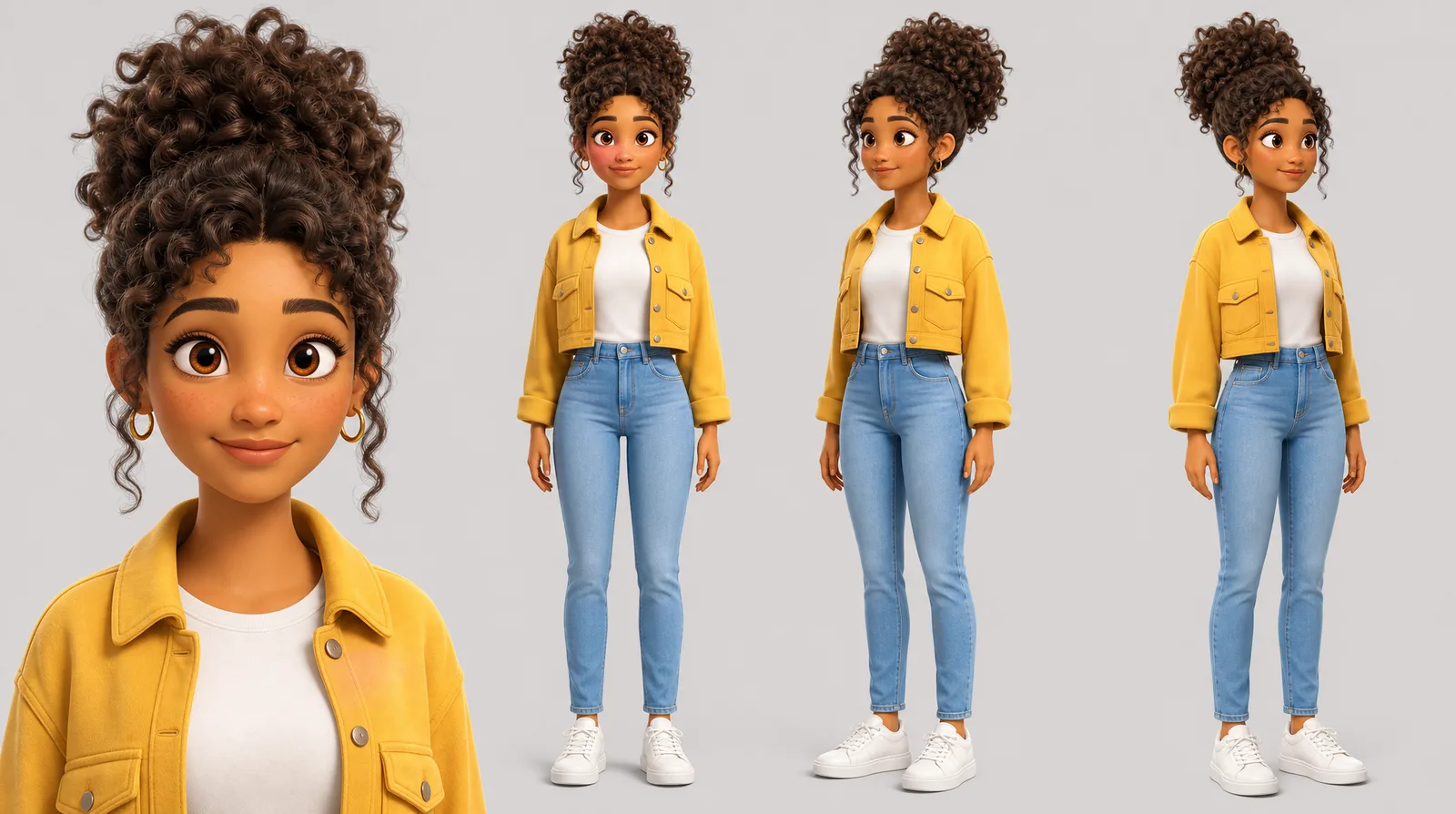
Here’s my full character consistency video and prompt.
There are two ways to build the shots.
1. One image per shot. You animate every image separately. It works, but you need more generations, and every new image is another chance for your character to drift.
2. Shot sheets. One image holds four or six frames that describe everything that happens in the shot, including the cuts and camera moves. Every frame comes from the same image, so you get the best consistency possible.
The skill uses shot sheets.
Here’s the full storyboard method for the shot sheets.
Stage 5: the videos
The video model makes a big difference here. When you give a lot of models a shot sheet, they animate the sheet itself, and you get a video of a grid of images.
Seedance 2.0 can do that too, but when it happens it usually lasts half a second to a second at the start, and you can cut it out. Prompted correctly, it follows the frames in order and builds the scene from them, so you get a lot more control.
Set the clip lengths from your timing map. For the Maxfusion ad, most clips were eight seconds and some were shorter.
On the Maxfusion MCP, you can generate every clip at once, in parallel. Send one or two first to check that the prompts and shot sheets turn into good videos, then send the rest.
The clip above was made from the shot sheet in Stage 4.
Stage 6: the edit
If you’re editing by hand, it’s simple:
1. Open CapCut.
2. Drop in all the clips.
3. Mute every clip.
4. Put the song on top.
5. Check that every shot matches the words.
I let Opus 5.5 do the edit instead, using the same timing map. It already knew which words are sung on which second and which shot goes where, so when it stitched the clips and laid the song over them, the ad was 99% done and everything lined up the first time.
A more complex ad might take a bit more back and forth, but it’s still much faster than editing by hand.
Run it as a skill
You don’t have to run this whole process yourself. Connect Claude to the Maxfusion MCP, activate the singing ad skill, and it asks you for your script. Every step after that happens in the same chat, so you never switch to another tool.
" height="57.25593113035147px" id="pFbN4t6nI" transform="translate(73 0)" width="138.9190010986328px"/><path d="M 58.958 24.529 L 67.611 12.149 L 59.372 0.274 L 64.067 0.274 L 70.234 9.479 L 76.217 0.274 L 80.774 0.274 L 72.58 12.287 L 81.37 24.529 L 76.723 24.529 L 70.003 15.279 L 63.375 24.529 L 58.957 24.529 Z M 44.566 24.809 C 43.479 24.811 42.396 24.671 41.345 24.394 C 40.359 24.1 39.426 23.649 38.583 23.059 C 37.789 22.45 37.131 21.682 36.65 20.804 C 36.19 19.884 35.96 18.824 35.96 17.628 C 35.96 16.248 36.205 15.082 36.696 14.13 C 37.218 13.18 37.908 12.427 38.768 11.875 C 39.627 11.323 40.624 10.924 41.759 10.679 C 42.924 10.43 44.112 10.306 45.303 10.31 L 52.437 10.31 C 52.437 8.93 52.237 7.733 51.838 6.72 C 51.47 5.708 50.857 4.926 49.998 4.373 C 49.138 3.79 48.003 3.499 46.592 3.499 C 45.786 3.493 44.982 3.585 44.198 3.775 C 43.462 3.959 42.833 4.251 42.311 4.649 C 41.79 5.049 41.406 5.585 41.161 6.26 L 36.972 6.26 C 37.187 5.156 37.602 4.22 38.215 3.453 C 38.848 2.664 39.63 2.008 40.516 1.52 C 41.436 0.998 42.419 0.615 43.462 0.37 C 44.487 0.126 45.538 0.002 46.592 0 C 50.09 0 52.575 1.029 54.048 3.085 C 55.52 5.14 56.257 7.917 56.257 11.415 L 56.257 24.532 L 52.989 24.532 L 52.759 21.448 C 52.084 22.368 51.271 23.075 50.319 23.565 C 49.397 24.047 48.402 24.373 47.374 24.532 C 46.449 24.711 45.509 24.803 44.566 24.808 Z M 44.935 21.356 C 46.469 21.356 47.788 21.111 48.893 20.62 C 50.028 20.098 50.903 19.347 51.516 18.365 C 52.13 17.383 52.436 16.186 52.436 14.775 L 52.436 13.578 L 48.156 13.578 C 47.144 13.578 46.146 13.593 45.165 13.624 C 44.183 13.654 43.293 13.778 42.495 13.992 C 41.698 14.207 41.053 14.575 40.562 15.097 C 40.102 15.618 39.872 16.37 39.872 17.352 C 39.872 18.272 40.102 19.024 40.562 19.607 C 41.053 20.19 41.682 20.635 42.449 20.942 C 43.249 21.218 44.089 21.358 44.935 21.356 Z M 0 24.532 L 0 0.277 L 3.774 0.277 L 3.958 3.177 C 4.48 2.44 5.063 1.842 5.707 1.382 C 6.381 0.922 7.128 0.58 7.917 0.369 C 8.769 0.12 9.652 -0.004 10.54 0.001 C 12.227 0.001 13.593 0.369 14.636 1.105 C 15.669 1.799 16.483 2.773 16.983 3.913 C 17.505 3.119 18.141 2.405 18.87 1.796 C 19.602 1.216 20.427 0.764 21.31 0.461 C 22.23 0.154 23.242 0.001 24.347 0.001 C 26.127 0.001 27.553 0.384 28.627 1.151 C 29.732 1.919 30.53 2.961 31.02 4.281 C 31.511 5.57 31.757 7.027 31.757 8.653 L 31.757 24.532 L 27.845 24.532 L 27.845 10.632 C 27.845 9.835 27.799 9.022 27.707 8.193 C 27.654 7.4 27.467 6.622 27.154 5.892 C 26.848 5.156 26.387 4.572 25.774 4.143 C 25.191 3.683 24.362 3.453 23.288 3.453 C 22.276 3.453 21.417 3.698 20.711 4.189 C 20.036 4.649 19.484 5.279 19.054 6.076 C 18.621 6.885 18.311 7.754 18.134 8.654 C 17.95 9.544 17.858 10.434 17.858 11.323 L 17.858 24.532 L 13.945 24.532 L 13.945 10.586 C 13.945 9.819 13.899 9.022 13.807 8.193 C 13.755 7.405 13.584 6.629 13.301 5.892 C 13.076 5.183 12.623 4.568 12.012 4.143 C 11.429 3.683 10.616 3.453 9.573 3.453 C 8.1 3.453 6.95 3.883 6.121 4.741 C 5.293 5.57 4.71 6.598 4.372 7.825 C 4.07 8.982 3.916 10.173 3.912 11.369 L 3.912 24.532 Z" fill="rgb(21, 22, 27)" height="24.80901853219235px" id="Dy5HPNSvH" transform="translate(0 18.5)" width="81.37000073242189px"/></g></svg>)
" height="32px" id="VmykzZzNe" width="32px"/></svg>)
" height="30.633213969252477px" id="w5KefWMGh" transform="translate(0 1)" width="32px"/></svg>)
" height="32px" id="KxxfrbxU7" width="32px"/></g></svg>)
" height="22.41686631528509px" id="wfz7J8dwQ" transform="translate(0 5)" width="32px"/></svg>)
" height="57.25593113035147px" id="ZNNxR3481" transform="translate(73 0)" width="138.9190010986328px"/><path d="M 58.958 24.529 L 67.611 12.149 L 59.372 0.274 L 64.067 0.274 L 70.234 9.479 L 76.217 0.274 L 80.774 0.274 L 72.58 12.287 L 81.37 24.529 L 76.723 24.529 L 70.003 15.279 L 63.375 24.529 L 58.957 24.529 Z M 44.566 24.809 C 43.479 24.811 42.396 24.671 41.345 24.394 C 40.359 24.1 39.426 23.649 38.583 23.059 C 37.789 22.45 37.131 21.682 36.65 20.804 C 36.19 19.884 35.96 18.824 35.96 17.628 C 35.96 16.248 36.205 15.082 36.696 14.13 C 37.218 13.18 37.908 12.427 38.768 11.875 C 39.627 11.323 40.624 10.924 41.759 10.679 C 42.924 10.43 44.112 10.306 45.303 10.31 L 52.437 10.31 C 52.437 8.93 52.237 7.733 51.838 6.72 C 51.47 5.708 50.857 4.926 49.998 4.373 C 49.138 3.79 48.003 3.499 46.592 3.499 C 45.786 3.493 44.982 3.585 44.198 3.775 C 43.462 3.959 42.833 4.251 42.311 4.649 C 41.79 5.049 41.406 5.585 41.161 6.26 L 36.972 6.26 C 37.187 5.156 37.602 4.22 38.215 3.453 C 38.848 2.664 39.63 2.008 40.516 1.52 C 41.436 0.998 42.419 0.615 43.462 0.37 C 44.487 0.126 45.538 0.002 46.592 0 C 50.09 0 52.575 1.029 54.048 3.085 C 55.52 5.14 56.257 7.917 56.257 11.415 L 56.257 24.532 L 52.989 24.532 L 52.759 21.448 C 52.084 22.368 51.271 23.075 50.319 23.565 C 49.397 24.047 48.402 24.373 47.374 24.532 C 46.449 24.711 45.509 24.803 44.566 24.808 Z M 44.935 21.356 C 46.469 21.356 47.788 21.111 48.893 20.62 C 50.028 20.098 50.903 19.347 51.516 18.365 C 52.13 17.383 52.436 16.186 52.436 14.775 L 52.436 13.578 L 48.156 13.578 C 47.144 13.578 46.146 13.593 45.165 13.624 C 44.183 13.654 43.293 13.778 42.495 13.992 C 41.698 14.207 41.053 14.575 40.562 15.097 C 40.102 15.618 39.872 16.37 39.872 17.352 C 39.872 18.272 40.102 19.024 40.562 19.607 C 41.053 20.19 41.682 20.635 42.449 20.942 C 43.249 21.218 44.089 21.358 44.935 21.356 Z M 0 24.532 L 0 0.277 L 3.774 0.277 L 3.958 3.177 C 4.48 2.44 5.063 1.842 5.707 1.382 C 6.381 0.922 7.128 0.58 7.917 0.369 C 8.769 0.12 9.652 -0.004 10.54 0.001 C 12.227 0.001 13.593 0.369 14.636 1.105 C 15.669 1.799 16.483 2.773 16.983 3.913 C 17.505 3.119 18.141 2.405 18.87 1.796 C 19.602 1.216 20.427 0.764 21.31 0.461 C 22.23 0.154 23.242 0.001 24.347 0.001 C 26.127 0.001 27.553 0.384 28.627 1.151 C 29.732 1.919 30.53 2.961 31.02 4.281 C 31.511 5.57 31.757 7.027 31.757 8.653 L 31.757 24.532 L 27.845 24.532 L 27.845 10.632 C 27.845 9.835 27.799 9.022 27.707 8.193 C 27.654 7.4 27.467 6.622 27.154 5.892 C 26.848 5.156 26.387 4.572 25.774 4.143 C 25.191 3.683 24.362 3.453 23.288 3.453 C 22.276 3.453 21.417 3.698 20.711 4.189 C 20.036 4.649 19.484 5.279 19.054 6.076 C 18.621 6.885 18.311 7.754 18.134 8.654 C 17.95 9.544 17.858 10.434 17.858 11.323 L 17.858 24.532 L 13.945 24.532 L 13.945 10.586 C 13.945 9.819 13.899 9.022 13.807 8.193 C 13.755 7.405 13.584 6.629 13.301 5.892 C 13.076 5.183 12.623 4.568 12.012 4.143 C 11.429 3.683 10.616 3.453 9.573 3.453 C 8.1 3.453 6.95 3.883 6.121 4.741 C 5.293 5.57 4.71 6.598 4.372 7.825 C 4.07 8.982 3.916 10.173 3.912 11.369 L 3.912 24.532 Z" fill="rgb(41, 42, 47)" height="24.80901853219235px" id="MB0beBzDo" transform="translate(0 18.5)" width="81.37000073242189px"/></g></svg>)